Was macht die Komponente?
Eine Tab-Group ermöglicht es Nutzenden, zwischen verschiedenen Inhalten oder Ansichten innerhalb derselben Seite zu wechseln, ohne die Seite neu zu laden.
Wann soll die Komponente eingesetzt werden?
- Um Inhalte thematisch zu gruppieren und strukturiert darzustellen.
- Um eine einfache und intuitive Navigation zwischen verschiedenen Inhalten oder Ansichten zu ermöglichen.
- Um Platz auf der Benutzeroberfläche zu sparen, indem nur ein Teil des Inhalts gleichzeitig angezeigt wird.
Regeln
- Tabs sollen klar beschriftet und leicht verständlich sein.
- Die Reihenfolge und Beschriftung der Tabs sollen logisch und intuitiv sein.
- Vermeide zu viele Tabs auf einmal, um die Übersichtlichkeit zu gewährleisten und die Benutzer nicht zu überfordern.
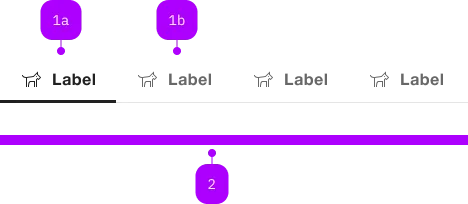
| Nummer | Typ | Beschreibung | Optional | Hinweis |
|---|---|---|---|---|
| 1a | Komponente | sbb-tab-label | Nein | Aktiver Zustand |
| 1b | Komponente | sbb-tab-label | Nein | Default Zustand |
| 2 | Komponente | sbb-tab | Nein |
Tabs organize content into separate views where only one view is visible at a time.
There are two variants available:
<sbb-tab-group>: For switching between different content blocks within the same view. Use this for content-based navigation.<sbb-tab-nav-bar>: For navigation between routes using anchor links. Use this for page-level navigation.
sbb-tab-group
The <sbb-tab-group> together with <sbb-tab-label> and <sbb-tab> are components used to organize and gather
tabs that the user can navigate through.
Use it when you want to provide navigation within blocks of content, instead of showing everything in one
place or requiring the user to navigate between several different views.
Each tab has a related content, distinct from other tabs' content;
tab panels can present different sections of content and include text, images, forms, other tab groups, etc.
<sbb-tab-group>
  <sbb-tab-label>I am the first</sbb-tab-label>
  <sbb-tab> Tab content 1 </sbb-tab>

  <sbb-tab-label>I am the second</sbb-tab-label>
  <sbb-tab> Tab content 2 </sbb-tab>

  <sbb-tab-label>I am the third</sbb-tab-label>
  <sbb-tab> Tab content 3 </sbb-tab>
</sbb-tab-group>
To display a tab label within the tab bar, provide a <sbb-tab-label> right before its related tab content.
The content element must be wrapped in a <sbb-tab> and placed right after its relative <sbb-tab-label>.
Tab groups can also be nested, which means that a <sbb-tab> can contain another <sbb-tab-group>,
as shown in the "Nested Tab Groups" example.
The <sbb-tab-label> component can optionally display a <sbb-icon> at the component start using the
iconName property or via custom content using the icon slot.
It's also possible to display a numeric amount at the component's end using the amount property or slot.
The label's heading tag can be changed using the level property.
<sbb-tab-label icon-name="app-icon-small" amount="123"> Tab Label </sbb-tab-label>

<sbb-tab-label>
  <sbb-icon slot="icon" name="circle-information-small"></sbb-icon>
  Tab Label
  <span slot="amount">123</span>
</sbb-tab-label>
There is also a variant for using anchors (<a>) as tabs. See <sbb-tab-nav-bar> below.
Fixed height
By default, the tab group adjusts its height based on the content of the active tab.
If you want to set a fixed height for the tab group, you can apply the fixed-height attribute or property
and set an explicit (or implicit) height on the element.
This will make the tab content scrollable if it exceeds the available space.
<sbb-tab-group fixed-height style="height: 400px;">
  <sbb-tab-label>Tab 1</sbb-tab-label>
  <sbb-tab>Long content that may need scrolling...</sbb-tab>

  <sbb-tab-label>Tab 2</sbb-tab-label>
  <sbb-tab>More content...</sbb-tab>
</sbb-tab-group>
States
A tab can be selected, unselected, or in disabled state; disable a tab to mark it as unavailable.
Disabled tabs cannot be focused and may be invisible to assistive technologies such as screen readers.
<sbb-tab-label disabled> Tab Label </sbb-tab-label>
It's possible to set the first selected tab using the initialSelectedIndex property.
<sbb-tab-group initial-selected-index="1"> ... </sbb-tab-group>
Events
Consumers can listen to the tabchange event, whose event.detail is typed as SbbTabChangedEventDetails.
From it, it's possible to retrieve the information about the current <sbb-tab-label>, <sbb-tab> and index, and,
if available, also the information about the previous ones.
interface SbbTabChangedEventDetails {
  activeIndex: number;
  activeTabLabel: SbbTabLabelElement;
  activeTab: SbbTabElement;
  previousIndex: number;
  previousTabLabel: SbbTabLabelElement | undefined;
  previousTab: SbbTabElement | undefined;
}
The <sbb-tab> dispatches the active event when a tab becomes active.
Accessibility
Use a semantic element as a content wrapper (p, article, section and so on)
to improve screen-reader usability due to its implicit role.
<sbb-tab>
  <section>Content</section>
</sbb-tab>
The <sbb-tab-group> component manages the ARIA relationsship between components
(e.g. aria-controls, etc.).
sbb-tab-nav-bar
The <sbb-tab-nav-bar> provides a tab-like UI for navigating between routes.
<sbb-tab-nav-bar>
  <a href="..." class="sbb-active" aria-current="page">Nav item 1</a>
  <a href="...">Nav item 2</a>
  <a href="...">Nav item 3</a>
</sbb-tab-nav-bar>
As the <sbb-tab-label> component, it supports a prefix icon and an amount.
<sbb-tab-nav-bar>
  <a href="..." class="sbb-active" aria-current="page">Nav item 1</a>
  ...

  <!-- With icon and amount -->
  <a href="...">
    <sbb-icon name="pie-small"></sbb-icon>
    Nav item 4
    <p class="sbb-tab-amount">42</p>
  </a>
</sbb-tab-nav-bar>
Please note that the amount should be wrapped with a <p> tag to better support screen readers.
States
Active
Add the sbb-active class to display the tab as active.
To indicate the active state to the assistive technologies, aria-current="page"
should be set whenever the CSS class sbb-active is set.
<sbb-tab-nav-bar>
  <a href="..." class="sbb-active" aria-current="page"> Nav item 1 </a>
  ...
</sbb-tab-nav-bar>
Disabled
Be aware that anchors do not support a disabled state. To achieve an equivalent one, consumer needs to:
- Add the
sbb-disabledclass; - Mark the anchor with
aria-disabled="true". - Remove the
hrefattribute. - Add
role="link"to better support the case for assistive technologies
<sbb-tab-nav-bar>
  ...
  <a class="sbb-disabled" aria-disabled="true" role="link"> Nav item 4 </a>
</sbb-tab-nav-bar>
API Documentation
class: SbbTabElement, sbb-tab
Properties
| Name | Attribute | Privacy | Type | Default | Description |
|---|---|---|---|---|---|
group | - | public | SbbTabGroupElement | null | Get the parent sbb-tab-group. | |
label | - | public | SbbTabLabelElement | null | The sbb-tab-label associated with the tab. |
Events
| Name | Type | Description | Inherited From |
|---|---|---|---|
active | Event | The active event fires when the sbb-tab has been activated via user selection on the sbb-tab-label. |
Slots
| Name | Description |
|---|---|
| Use the unnamed slot to provide content. |
class: SbbTabGroupElement, sbb-tab-group
Properties
| Name | Attribute | Privacy | Type | Default | Description |
|---|---|---|---|---|---|
fixedHeight | fixed-height | public | boolean | false | If set to true, the sbb-tab elements take 100% height of the sbb-tab-group. It enables controlling the height on the sbb-tab-group element. The content becomes scrollable on overflow. |
initialSelectedIndex | initial-selected-index | public | number | 0 | Sets the initial tab. If it matches a disabled tab or exceeds the length of the tab group, the first enabled tab will be selected. |
labels | - | public | SbbTabLabelElement[] | Gets the slotted sbb-tab-labels. | |
size | size | public | 's' | 'l' | 'xl' | 'l' / 's' (lean) | Size variant, either s, l or xl. |
tabs | - | public | SbbTabElement[] | Gets the slotted sbb-tabs. |
Methods
| Name | Privacy | Description | Parameters | Return | Inherited From |
|---|---|---|---|---|---|
activateTab | public | Activates a tab by index. | index: number | void | |
disableTab | public | Disables a tab by index. | index: number | void | |
enableTab | public | Enables a tab by index. | index: number | void |
Events
| Name | Type | Description | Inherited From |
|---|---|---|---|
tabchange | CustomEvent<SbbTabChangedEventDetails> | The tabchange event is dispatched when a tab is selected. |
Slots
| Name | Description |
|---|---|
Use the unnamed slot to add content to the sbb-tab-group via sbb-tab-label and sbb-tab instances. |
class: SbbTabLabelElement, sbb-tab-label
Properties
| Name | Attribute | Privacy | Type | Default | Description |
|---|---|---|---|---|---|
active | active | public | boolean | false | Active tab state. |
amount | amount | public | string | '' | Amount displayed inside the tab. |
disabled | disabled | public | boolean | false | Whether the component is disabled. |
group | - | public | SbbTabGroupElement | null | Get the parent sbb-tab-group. | |
iconName | icon-name | public | string | '' | The icon name we want to use, choose from the small icon variants from the ui-icons category from here https://icons.app.sbb.ch. |
level | level | public | SbbTitleLevel | '1' | The level will correspond to the heading tag generated in the title. Use this property to generate the appropriate header tag, taking SEO into consideration. |
tab | - | public | SbbTabElement | null | Get the sbb-tab related to the sbb-tab-label. |
Methods
| Name | Privacy | Description | Parameters | Return | Inherited From |
|---|---|---|---|---|---|
activate | public | Select the tab, deactivating the current selected one, and dispatch the tabchange event. | void | ||
deactivate | public | Deactivate the tab. | void |
Slots
| Name | Description |
|---|---|
| Use the unnamed slot to add content to the tab title. | |
amount | Provide a number to show an amount to the right of the title. |
icon | Use this slot to display an icon to the left of the title, by providing the sbb-icon component. |
class: SbbTabNavBarElement, sbb-tab-nav-bar
Properties
| Name | Attribute | Privacy | Type | Default | Description |
|---|---|---|---|---|---|
size | size | public | 's' | 'l' | 'xl' | 'l' / 's' (lean) | Size variant, either s, l or xl. |
Slots
| Name | Description |
|---|---|
| Use the unnamed slot to add anchors. |