Was macht die Komponente?
Ein File-Selector ist eine Komponente, die es Nutzenden ermöglicht, Dateien von seinem Gerät auszuwählen und hochzuladen.
Wann soll die Komponente eingesetzt werden?
- Um Nutzenden die Möglichkeit zu geben, Dateien hochzuladen, wie z.B. Dokumente, Bilder oder Videos.
- Um Formulare zu vervollständigen, die Dateianhänge erfordern.
- Um Dateien für die Speicherung, Verarbeitung oder Weitergabe zu sammeln.
Regeln
- Nutzende sollen Dateien entfernen können.
- Der Fortschritt des Datei-Uploads kann Nutzenden angezeigt werden, insbesondere bei grösseren Dateien.
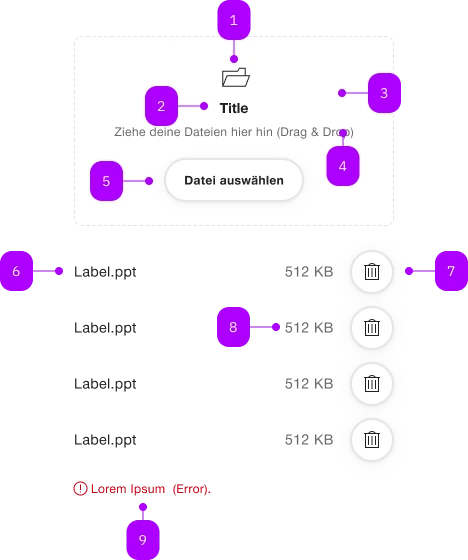
| Nummer | Typ | Beschreibung | Optional | Hinweis |
|---|---|---|---|---|
| 1 | Komponente | sbb-icon | Nein | |
| 2 | Komponente | sbb-title | Nein | |
| 3 | Area | Dropzone | Ja | |
| 4 | Text | Subtext | Nein | |
| 5 | Komponente | sbb-secondary-button | Nein | Datei auswählen |
| 6 | Text | Label | Nein | |
| 7 | Komponente | sbb-secondary-button | Nein | Delete-Button |
| 8 | Text | Dateigrösse | Nein | |
| 9 | Komponente | sbb-form-error | Nein |
Spielwiese
The sbb-file-selector-dropzone is a component which allows user to select one or more files from storage devices.
When files are selected, they appear as a list below the button/dropzone area.
For each file, the name and the size are displayed and an icon allows for deletion.
The component mimics the native <input type="file"/> with an additional "drag & drop" area:
it's possible to customize the area's title via the titleContent property.
For the basic variant, see sbb-file-selector
<sbb-file-selector-dropzone></sbb-file-selector-dropzone>
Slots
The error named slot can be used to display an error message using the sbb-error component.
<sbb-file-selector-dropzone>
  <sbb-error slot="error">An error occurred during file upload.</sbb-error>
</sbb-file-selector-dropzone>
States
User interaction can be disabled using the disabled property.
<sbb-file-selector-dropzone disabled></sbb-file-selector-dropzone>
Multiple and multipleMode
A single file can be selected by default; this can be changed setting the multiple property to true.
<sbb-file-selector-dropzone multiple></sbb-file-selector-dropzone>
The value of the multipleMode property determines whether added files should overwrite existing files (default) or be appended to them (persistent).
<sbb-file-selector-dropzone multiple multiple-mode="persistent"></sbb-file-selector-dropzone>
Accept
The accept property can be used to force the user to select one or more specific file types;
in the next example, only images are allowed.
<sbb-file-selector-dropzone accept=".png,.jpg,.jpeg"></sbb-file-selector-dropzone>
Style
The component has also two different sizes, m (default) and s, which can be changed using the size property.
<sbb-file-selector-dropzone size="s"></sbb-file-selector-dropzone>
Events
Whenever the selection changes, a filechanged event is fired, whose event.detail property contains the list
of currently selected files. The list can also be retrieved using the public files getter.
Accessibility
It's possible to improve the component accessibility using the accessibilityLabel property; this will be set
as aria-label of the inner native input and read together with the visible button text.
It's suggested to have a different value for each variant, e.g.:
<sbb-file-selector-dropzone
  accessibility-label="Select a file from hard disk"
></sbb-file-selector-dropzone>
<sbb-file-selector-dropzone
  multiple
  accessibility-label="Select from hard disk - multiple selection allowed"
></sbb-file-selector-dropzone>
Properties
| Name | Attribute | Privacy | Type | Default | Description |
|---|---|---|---|---|---|
accept | accept | public | string | '' | A comma-separated list of allowed unique file type specifiers. |
accessibilityLabel | accessibility-label | public | string | '' | This will be forwarded as aria-label to the native input element. |
disabled | disabled | public | boolean | false | Whether the component is disabled. |
files | - | public | Readonly<File>[] | [] | The list of selected files. |
form | - | public | HTMLFormElement | null | Returns the form owner of this element. | |
multiple | multiple | public | boolean | false | Whether more than one file can be selected. |
multipleMode | multiple-mode | public | 'default' | 'persistent' | 'default' | Whether the newly added files should override the previously added ones. |
name | name | public | string | Name of the form element. Will be read from name attribute. | |
size | size | public | 's' | 'm' | 'm' / 's' (lean) | Size variant, either s or m. |
titleContent | title-content | public | string | '' | The title displayed in dropzone variant. |
type | - | public | string | 'file' | Form type of element. |
validationMessage | - | public | string | Returns the current error message, if available, which corresponds to the current validation state. Please note that only one message is returned at a time (e.g. if multiple validity states are invalid, only the chronologically first one is returned until it is fixed, at which point the next message might be returned, if it is still applicable). Also, a custom validity message (see below) has precedence over native validation messages. | |
validity | - | public | ValidityState | Returns the ValidityState object for this element. | |
value | - | public | string | null | The path of the first selected file. Empty string ('') if no file is selected | |
willValidate | - | public | boolean | Returns true if this element will be validated when the form is submitted; false otherwise. |
Methods
| Name | Privacy | Description | Parameters | Return | Inherited From |
|---|---|---|---|---|---|
checkValidity | public | Returns true if this element has no validity problems; false otherwise. Fires an invalid event at the element in the latter case. | boolean | SbbFormAssociatedMixin | |
formResetCallback | public | void | SbbFileSelectorCommonElementMixin | ||
formStateRestoreCallback | public | state: FormRestoreState | null, _reason: FormRestoreReason | void | SbbFileSelectorCommonElementMixin | |
reportValidity | public | Returns true if this element has no validity problems; otherwise, returns false, fires an invalid event at the element, and (if the event isn't canceled) reports the problem to the user. | boolean | SbbFormAssociatedMixin | |
setCustomValidity | public | Sets the custom validity message for this element. Use the empty string to indicate that the element does not have a custom validity error. | message: string | void | SbbFormAssociatedMixin |
Events
| Name | Type | Description | Inherited From |
|---|---|---|---|
change | Event | The change event is fired when the user modifies the element's value. Unlike the input event, the change event is not necessarily fired for each alteration to an element's value. | SbbFileSelectorCommonElementMixin |
filechanged | CustomEvent<Readonly<File>[]> | An event which is emitted each time the file list changes. | SbbFileSelectorCommonElementMixin |
input | InputEvent | The input event fires when the value has been changed as a direct result of a user action. | SbbFileSelectorCommonElementMixin |
Slots
| Name | Description |
|---|---|
error | Use this to provide a sbb-error to show an error message. |