Was macht die Komponente?
Ein Link ist ein interaktives Textelement, das Nutzenden zu einer anderen Seite oder Ressource navigiert.
Wann soll die Komponente eingesetzt werden?
- Um Nutzende zu weiteren Inhalten, Seiten oder externen Ressourcen zu führen.
- Um Verweise auf verwandte Informationen oder Dokumente bereitzustellen.
- Um die Navigation innerhalb der Webseite oder Anwendung zu erleichtern.
Regeln
- Verwende beschreibende und aussagekräftige Link-Texte, um den Nutzenden den Zielinhalt verständlich zu machen.
- Links sollen in einem neuen Tab geöffnet werden, wenn sie zu externen Ressourcen führen.
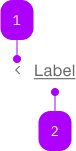
| Nummer | Typ | Beschreibung | Optional | Hinweis |
|---|---|---|---|---|
| 1 | Komponente | sbb-icon | Ja | Kann am Anfang oder Ende gesetzt werden. |
| 2 | Text | Label | Nein |
Spielwiese
The sbb-block-link-button component provides the same functionality as a native <button>,
despite its appearance as a link enhanced with the SBB Design.
Slots
The text is provided via an unnamed slot; the component can optionally display a sbb-icon using
the iconName property or via custom content using the icon slot.
By default, the icon is placed at the component's end, but this can be changed using the iconPlacement property.
<sbb-block-link-button value="help"> Help </sbb-block-link-button>

<sbb-block-link-button value="contact" icon-name="chevron-small-left-small" icon-placement="start">
  Contact
</sbb-block-link-button>
States
The component can be displayed in disabled state using the self-named property.
<sbb-block-link-button disabled>Refunds</sbb-block-link-button>
Button properties
The component is internally rendered as a button,
accepting its associated properties (type, name, value and form).
<sbb-block-link-button name="tickets" form="buy" value="tickets">
  Travel-cards and tickets
</sbb-block-link-button>
Style
The component has three sizes (xs, s, which is the default, and m).
<sbb-block-link-button size="m">Refunds</sbb-block-link-button>
Active state
To show a currently active link, the CSS class sbb-active can be placed on the sbb-block-link-button.
One possible use case would be to use it within the sbb-sidebar.
<sbb-block-link-button class="sbb-active" aria-current="page">Refunds</sbb-block-link-button>
Accessibility
Interactive disabled buttons
Native disabled elements cannot receive focus and do not dispatch any events. This can
be problematic in some cases because it can prevent the app from telling the user why the button is
disabled. Consumers can use the disabledInteractive property to receive focus and dispatch events.
The button will have aria-disabled="true" for assistive technology.
It is the consumers responsibility to provide a reason for the element being disabled.
This can be achieved by adding an aria-label, aria-labelledby or aria-describedby attribute.
Note: Using the disabledInteractive property can result in buttons that previously prevented
actions to no longer do so, for example a submit button in a form. When using this input, you should
guard against such cases in your component.
Properties
| Name | Attribute | Privacy | Type | Default | Description |
|---|---|---|---|---|---|
disabled | disabled | public | boolean | false | Whether the component is disabled. |
disabledInteractive | disabled-interactive | public | boolean | false | Whether the button should be aria-disabled but stay interactive. |
form | form | public | HTMLFormElement | null | The <form> element to associate the button with. | |
iconName | icon-name | public | string | '' | The icon name we want to use, choose from the small icon variants from the ui-icons category from here https://icons.app.sbb.ch. |
iconPlacement | icon-placement | public | SbbIconPlacement | 'start' | Moves the icon to the end of the component if set to true. |
name | name | public | string | Name of the form element. Will be read from name attribute. | |
size | size | public | SbbLinkSize | 's' / 'xs' (lean) | Text size, the link should get in the non-button variation. With inline variant, the text size adapts to where it is used. |
type | type | public | SbbButtonType | 'button' | The type attribute to use for the button. |
validationMessage | - | public | string | Returns the current error message, if available, which corresponds to the current validation state. Please note that only one message is returned at a time (e.g. if multiple validity states are invalid, only the chronologically first one is returned until it is fixed, at which point the next message might be returned, if it is still applicable). Also, a custom validity message (see below) has precedence over native validation messages. | |
validity | - | public | ValidityState | Returns the ValidityState object for this element. | |
value | value | public | string | '' | Value of the form element. |
willValidate | - | public | boolean | Returns true if this element will be validated when the form is submitted; false otherwise. |
Methods
| Name | Privacy | Description | Parameters | Return | Inherited From |
|---|---|---|---|---|---|
checkValidity | public | Returns true if this element has no validity problems; false otherwise. Fires an invalid event at the element in the latter case. | boolean | SbbFormAssociatedMixin | |
reportValidity | public | Returns true if this element has no validity problems; otherwise, returns false, fires an invalid event at the element, and (if the event isn't canceled) reports the problem to the user. | boolean | SbbFormAssociatedMixin | |
setCustomValidity | public | Sets the custom validity message for this element. Use the empty string to indicate that the element does not have a custom validity error. | message: string | void | SbbFormAssociatedMixin |
Slots
| Name | Description |
|---|---|
Use the unnamed slot to add content to the sbb-block-link-button. | |
icon | Slot used to display the icon, if one is set. |