Was macht die Komponente?
Ein Bild (Image) ist eine visuelle Darstellung, die verwendet wird, um Inhalte zu illustrieren, visuelle Informationen zu vermitteln oder das Design zu bereichern.
Wann soll die Komponente eingesetzt werden?
- Um Inhalte visuell zu unterstützen und zu ergänzen.
- Um komplexe Informationen oder Daten grafisch darzustellen.
- Um das visuelle Erscheinungsbild der Webseite oder Anwendung zu verbessern.
- Um Benutzeremotionen zu wecken oder eine bestimmte Stimmung zu erzeugen.
Regeln
- Bilder sollen in hoher Qualität und angemessener Auflösung verwendet werden, um ein klares und professionelles Erscheinungsbild zu gewährleisten.
- Verwende beschreibende Alt-Texte für Bilder, um die Barrierefreiheit zu gewährleisten und sicherzustellen, dass die Informationen auch für Screenreader zugänglich sind.
- Achte darauf, dass Bilder responsive sind und auf verschiedenen Geräten und Bildschirmgrössen gut dargestellt werden.
- Vermeide übermässigen Einsatz von Bildern, um die Ladezeiten der Webseite nicht unnötig zu verlängern.
- Stelle sicher, dass die Bildrechte geklärt sind und keine Urheberrechte verletzt werden.
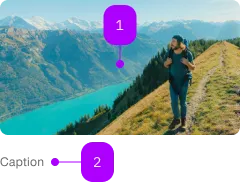
| Nummer | Typ | Beschreibung | Optional | Hinweis |
|---|---|---|---|---|
| 1 | Property | Image | Nein | |
| 2 | Text | Caption | Ja |
Spielwiese
The <sbb-image> component is used to render an image.
Mainly from cdn.img.sbb.ch (with imageSrc), but we can set an external image too.
The size can be set with pictureSizesConfig.
<sbb-image image-src="..." alt="..."></sbb-image>
Usage
For image related elements, it is strongly recommended to wrap an <sbb-image> and all its related elements in a figure tag.
E.g. <figcaption> or <sbb-chip-label>.
<figure class="sbb-figure">
  <sbb-image ...></sbb-image> or <img />
  <figcaption>Caption / Copyright</figcaption>
</figure>
You can place overlapping content by using the sbb-figure-overlap-${horizontal-alignment}-${vertical-alignment} utility classes.
| Position | CSS class |
|---|---|
top-left | sbb-figure-overlap-start-start |
top-right | sbb-figure-overlap-start-end |
bottom-left | sbb-figure-overlap-end-start |
bottom-right | sbb-figure-overlap-end-end |
<figure class="sbb-figure">
  <sbb-image ...></sbb-image>
  <sbb-chip-label class="sbb-figure-overlap-start-start"></sbb-chip-label>
</figure>
Instead of a <sbb-chip-label>, it's also possible to slot images (e.g. logos).
In that case, the sbb-figure-overlap-image CSS class needs to be set on the image.
<figure class="sbb-figure">
  <sbb-image ...></sbb-image>
  <img class="sbb-figure-overlap-image sbb-figure-overlap-end-end" src="logo.png" alt="Logo" />
</figure>
** Multiple <sbb-chip-label>s **
In order to place multiple <sbb-chip-label>s, a wrapping div can be used:
<figure class="sbb-figure">
  <sbb-image ...></sbb-image>
  <div class="sbb-figure-overlap-end-end">
    <sbb-chip-label>AI generated</sbb-chip-label>
    <sbb-chip-label>Paid content</sbb-chip-label>
  </div>
</figure>
Utility classes
Use the sbb-image-border-radius-${value} utility classes to set the image border radius.
| Border radius | CSS class |
|---|---|
default | sbb-image-border-radius-default |
none | sbb-image-border-radius-none |
round | sbb-image-border-radius-round |
<sbb-image class="sbb-image-border-radius-none"></sbb-image>
<!-- or -->
<img class="sbb-image-border-radius-round" />
Use the sbb-image-${ratio} utility classes to set the image aspect ratio.
| Aspect Ratio | CSS class |
|---|---|
free | sbb-image-free |
1-1 | sbb-image-1-1 |
1-2 | sbb-image-1-2 |
2-1 | sbb-image-2-1 |
2-3 | sbb-image-2-3 |
3-2 | sbb-image-3-2 |
3-4 | sbb-image-3-4 |
4-3 | sbb-image-4-3 |
4-5 | sbb-image-4-5 |
5-4 | sbb-image-5-4 |
9-16 | sbb-image-9-16 |
16-9 | sbb-image-16-9 |
<sbb-image class="sbb-image-16-9"></sbb-image>
<!-- or -->
<img class="sbb-image-4-3" />
API Documentation
class: SbbImageElement, sbb-image
Properties
| Name | Attribute | Privacy | Type | Default | Description |
|---|---|---|---|---|---|
alt | alt | public | string | '' | An alt text is not always necessary (e.g. in teaser cards when additional link text is provided). In this case we can leave the value of the alt attribute blank, but the attribute itself still needs to be present. That way we can signal assistive technology, that they can skip the image. |
complete | - | public | boolean | Whether the image is finished loading or failed to load. | |
customFocalPoint | custom-focal-point | public | boolean | false | Set this to true, if you want to pass a custom focal point for the image. See full documentation here: https://docs.imgix.com/apis/rendering/focalpoint-crop |
decoding | decoding | public | 'sync' | 'async' | 'auto' | 'auto' | If the lazy property is set to true, the module will automatically change the decoding to async, otherwise the decoding is set to auto which leaves the handling up to the browser. Read more about the decoding attribute here: https://developer.mozilla.org/en-US/docs/Web/API/HTMLImageElement/decoding |
focalPointDebug | focal-point-debug | public | boolean | false | Set this to true, to receive visual guidance where the custom focal point is currently set. |
focalPointX | focal-point-x | public | number | 1 | Pass in a floating number between 0 (left) and 1 (right). |
focalPointY | focal-point-y | public | number | 1 | Pass in a floating number between 0 (top) and 1 (bottom). |
imageSrc | image-src | public | string | '' | Right now the module is heavily coupled with the image delivery service imgix and depends on the original files being stored inside AEM. You can pass in any https://cdn.img.sbb.ch img src address you find on sbb.ch to play around with it. Just strip the url parameters and paste in the plain file address. If you want to know how to best work with this module with images coming from a different source, please contact the LYNE Core Team. |
importance | importance | public | 'auto' | 'high' | 'low' | 'high' | The importance attribute is fairly new attribute which should help the browser decide which resources it should prioritise during page load. We will set the attribute value based on the value, we receive in the loading attribute. 'eager', which we use for the largest image within the initial viewport, will set the attribute value to 'high'. 'lazy', which we use for images below the fold, will set the attribute value to 'low'. |
loading | loading | public | 'eager' | 'lazy' | 'eager' | With the support of native image lazy loading, we can now decide whether we want to load the image immediately or only once it is close to the visible viewport. The value eager is best used for images within the initial viewport. We want to load these images as fast as possible to improve the Core Web Vitals values. lazy on the other hand works best for images which are further down the page or invisible during the loading of the initial viewport. |
performanceMark | performance-mark | public | string | '' | With performance.mark you can log a timestamp associated with the name you define in performanceMark when a certain event is happening. In our case we will log the performance.mark into the PerformanceEntry API once the image is fully loaded. Performance monitoring tools like SpeedCurve or Lighthouse are then able to grab these entries from the PerformanceEntry API and give us additional information and insights about our page loading behavior. We are then also able to monitor these values over a long period to see if our performance increases or decreases over time. Best to use lowercase strings here, separate words with underscores or dashes. |
pictureSizesConfig | picture-sizes-config | public | string | '' | With the pictureSizesConfig object, you can pass in information into image about what kind of source elements should get rendered. mediaQueries accepts multiple Media Query entries which can get combined by defining a conditionOperator. Type is: stringified InterfaceImageAttributesSizesConfig-Object An example could look like this: { "breakpoints": [ { "image": { "height": "675", "width": "1200" }, "mediaQueries": [ { "conditionFeature": "min-width", "conditionFeatureValue": { "lyneDesignToken": true, "value": "sbb-breakpoint-large-min" }, "conditionOperator": false } ] }, { "image": { "height": "549", "width": "976" }, "mediaQueries": [ { "conditionFeature": "min-width", "conditionFeatureValue": { "lyneDesignToken": true, "value": "sbb-breakpoint-small-min" }, "conditionOperator": false } ] }, { "image": { "height": "180", "width": "320" }, "mediaQueries": [ { "conditionFeature": "max-width", "conditionFeatureValue": { "lyneDesignToken": true, "value": "sbb-breakpoint-small-max" }, "conditionOperator": "and" }, { "conditionFeature": "orientation", "conditionFeatureValue": { "lyneDesignToken": false, "value": "landscape" }, "conditionOperator": false } ] } ] } |
skipLqip | skip-lqip | public | boolean | false | If set to false, we show a blurred version of the image as placeholder before the actual image shows up. This will help to improve the perceived loading performance. Read more about the idea of lqip here: https://medium.com/@imgix/lqip-your-images-for-fast-loading-2523d9ee4a62 |
Events
| Name | Type | Description | Inherited From |
|---|---|---|---|
error | Event | Emits when the image loading ended in an error. | |
load | Event | Emits each time an image loads. E.g. loading image for a different viewport, triggers the load event again. |
CSS Properties
| Name | Default | Description |
|---|---|---|
--sbb-image-aspect-ratio | auto | Can be used to override aspectRatio property. This way we can have, for example, an image component with an aspect ratio of 4/3 in smaller viewports and 16/9 in larger viewports. |
--sbb-image-object-fit | cover | Can be used to set the object-fit CSS property of the image itself if the image itself is cropped. |
--sbb-image-object-position | Can be used to set the object-position CSS property of the image itself if the image itself is cropped. |