Was macht die Komponente?
Das Form-Field ist ein Wrapper, der die einheitliche Darstellung und Funktion von Formular-Komponenten wie Input (Text, Date, Time), Select und Textarea sicherstellt.
Wann soll die Komponente eingesetzt werden?
- Bei jeder Verwendung eines Input, Selects oder Textareas.
- Um eine konsistente Gestaltung und Ausrichtung von Formular-Input-Komponenten zu gewährleisten.
Regeln
- Der Einsatz von Formular-Elementen ohne Form-Field ist nicht empfohlen. Sollte es aus Gründen doch nötig sein, so ist die Darstellung einzuhalten und muss von der Webseite oder Applikation gewährleistet sein.
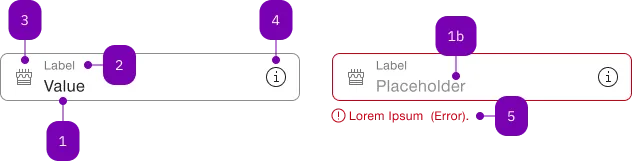
| Nummer | Typ | Beschreibung | Optional | Hinweis |
|---|---|---|---|---|
| 1 | Standard-HTML | input | Nein | |
| 1b | Standard-HTML | input | Ja | Placeholder |
| 2 | Standard-HTML | label | Nein | |
| 3 | Komponente | sbb-icon | Ja | Prefix |
| 4 | Komponente | sbb-icon oder sbb-form-field-clear | Ja | Suffix |
| 5 | Komponente | sbb-form-error | Nein | Datei auswählen |
Spielwiese
The <sbb-form-field> component is intended to be used as a form input wrapper with label and errors.
<sbb-form-field>
  <label>Example</label>
  <input />
</sbb-form-field>

<sbb-form-field>
  <label>Example</label>
  <input required />
  <sbb-error>This field is required!</sbb-error>
</sbb-form-field>
In this document, "form field" refers to the wrapper component <sbb-form-field> and
"form field control" refers to the component that the <sbb-form-field> is wrapping
(e.g., the input, select, etc.)
The following components are designed to work inside a <sbb-form-field>:
<input><select><textarea>- sbb-datepicker and its associated components
- sbb-select
- sbb-slider
- sbb-time-input
- sbb-autocomplete
Slots
Label
Use a <label> element to provide a label for a form input. The
<sbb-form-field> will automatically configure the reference between label and input.
It's possible to use the floatingLabel property to display the label inside the input.
When using it and setting the value programmatically to empty or from empty to a specific value,
it's mandatory to call the reset() method of the <sbb-form-field> to update the state of the floating label.
<sbb-form-field>
  <label>Example</label>
  <input />
</sbb-form-field>
Error messages
Error messages can be shown under the form field by adding <sbb-error> elements inside the form field.
The component will automatically assign them to the slot='error'.
<sbb-form-field floating-label>
  <label>Example</label>
  <input required />
  <sbb-error>This field is required!</sbb-error>
</sbb-form-field>
In order to avoid the layout from "jumping" when an error is shown, the option of setting error-space="reserve"
on the <sbb-form-field> will reserve space for a single line of an error message.
It is also possible to provide a custom icon to the <sbb-error> component via the icon slot:
<sbb-error>
  <sbb-icon name="pie-small" slot="icon"></sbb-icon>
  This is a required field.
</sbb-error>
Prefix & Suffix
It is possible to add content as a prefix or suffix in a <sbb-form-field>.
This can be done via the prefix and suffix slots.
<sbb-form-field>
  <label>Example</label>
  <sbb-icon slot="prefix" name="pie-small"></sbb-icon>
  <input />
  <sbb-icon slot="suffix" name="circle-information-small"></sbb-icon>
</sbb-form-field>
It's also possible to slot an icon-only button using the sbb-mini-button.
Please note that only this component is correctly supported when slotting buttons in negative mode.
<sbb-form-field>
  <label>Example</label>
  <input />
  <sbb-mini-button slot="suffix" icon-name="pen-small"></sbb-mini-button>
</sbb-form-field>
Some components, like the sbb-form-field-clear or the
sbb-slider, when used within the form field, will automatically occupy
one or both of these slots.
Please refer to their documentation for more details.
Clear Button
The <sbb-form-field-clear> component can be used to provide the possibility to display a button
which can clear the input value.
<sbb-form-field>
  <label>Label</label>
  <input type="text" placeholder="Input placeholder" value="Input value" />
  <sbb-form-field-clear></sbb-form-field-clear>
</sbb-form-field>
Note: it currently works with simple inputs and does not support, for example, select inputs.
Style
The component has a size property, which accepts three different values: s, m (default) and l.
<sbb-form-field size="s">
  <label>Example</label>
  <input />
</sbb-form-field>

<sbb-form-field size="l">
  <label>Example</label>
  <input required />
  <sbb-error>This field is required!</sbb-error>
</sbb-form-field>
By default, the component has a defined width and min-width. However, this behavior can be overridden by setting
the width property to collapse: in this way the component adapts its width to the inner slotted input component.
This is useful, for example, for the sbb-time-input component.
However, as the width-styles are exposed to the host,
it's possible to apply any desired width by setting just the width and min-width CSS properties.
<sbb-form-field width="collapse">
  <sbb-time-input value="13:30"></sbb-time-input>
</sbb-form-field>
Reflected state from input
The form field reflects certain states as custom states. This includes focus, disabled,
readonly, empty, has-error, has-popup-open and input-type-{tag name of the input}.
This can be targeted via CSS via the :state() pseudo-class:
sbb-form-field:state(disabled) {
  // Additional rules to apply when the input of the form field is disabled
}
Error state
The form field is displayed in an error state when an input element has been interacted with
and is in an error state. This checks both for the native validity state (which can be set
on <input>, <select> and <textarea> via validation attributes like required or
via the setCustomValidity(message) method) and for the Angular Forms state classes.
If you want to manually set the error state, you can add the sbb-invalid CSS class
to the input element.
If you want to directly show the error state without having had an interaction, you can use the
sbb-show-errors class on an ancestor (e.g. <form>).
Custom form control
The form field looks for native form controls (i.e. <input>, <select>
or <textarea>) or form associated custom elements. If nothing matches,
it assumes the first slotted element is the form control (excluding
<label> and elements with a slot="*" attribute).
Once connected, the form field primarily observes the attributes readonly,
disabled, form, class and listens to the input and invalid event
on the connected form control to update the internal state accordingly.
If you want to use a custom form control that does not follow that convention
(e.g. Angular), you need to provide an integration layer, which is defined
as the SbbFormFieldElementControl interface.
To initially connect the custom form control and to update the state, whenever
one of the property of the interface changes, the SbbFormFieldControlEvent
needs to be dispatched on the <sbb-form-field> instance.
Angular
In @sbb-esta/lyne-angular we have an adaption layer to easily define a custom form control.
Please consume the documentation of @sbb-esta/lyne-angular for an example.
Example
If you are using another framework, or you are using an existing library
that you need to connect, you can write the integration yourself.
import {
  SbbFormFieldElementControl,
  SbbFormFieldControlEvent,
} from '@sbb-esta/lyne-elements/form-field.js';

const formField = document.getElementsByTagName('sbb-form-field')[0];
const myControl = document.getElementsByTagName('my-form-control')[0];

function onFormControlChange(): void {
  formField.dispatchEvent(
    new SbbFormFieldControlEvent({
      id: myControl.id,
      disabled: myControl.disabled,
      empty: myControl.isEmpty,
      readOnly: myControl.readOnly,
      onContainerClick: (): void => myControl.focus(),
    }),
  );
}

myControl.addEventListener('custom-change-event', onFormControlChange);
Accessibility
By itself, the <sbb-form-field> does not apply any additional accessibility treatment to a form
element. However, several of the form field's optional features interact with the form element
contained within the form field.
When you provide a label, the <sbb-form-field> automatically
associates this label with the form element using the for
attribute to reference the control's ID.
When using a non-native form element, the aria-labelledby is used to connect the
form element with the label, by setting an id on the label and referencing this id in the
aria-labelledby attribute placed on the form element.
Please note that only one <label> element is supported. Additionally, if you place the <label>
element outside the <sbb-form-field>, the automatic assignment is skipped, and it is up to the
consumer to use the correct id references.
If you like to visually hide a label, but still present it with screen readers, use the hiddenLabel property.
When you provide informational text via <sbb-error>, it automatically adds these elements' IDs
to the form element's ariaErrorMessageElements property (or aria-errormessage attribute as fallback).
API Documentation
class: SbbErrorElement, sbb-error
Properties
| Name | Attribute | Privacy | Type | Default | Description |
|---|---|---|---|---|---|
negative | negative | public | boolean | false | Negative coloring variant flag. |
Slots
| Name | Description |
|---|---|
| Use this slot to display the error message. | |
icon | Use this slot to override the default error icon. |
class: SbbFormFieldClearElement, sbb-form-field-clear
Properties
| Name | Attribute | Privacy | Type | Default | Description |
|---|---|---|---|---|---|
form | form | public | HTMLFormElement | null | The <form> element to associate the button with. | |
name | name | public | string | Name of the form element. Will be read from name attribute. | |
negative | negative | public | boolean | false | Negative coloring variant flag. |
type | type | public | SbbButtonType | 'button' | The type attribute to use for the button. |
validationMessage | - | public | string | Returns the current error message, if available, which corresponds to the current validation state. Please note that only one message is returned at a time (e.g. if multiple validity states are invalid, only the chronologically first one is returned until it is fixed, at which point the next message might be returned, if it is still applicable). Also, a custom validity message (see below) has precedence over native validation messages. | |
validity | - | public | ValidityState | Returns the ValidityState object for this element. | |
value | value | public | string | '' | Value of the form element. |
willValidate | - | public | boolean | Returns true if this element will be validated when the form is submitted; false otherwise. |
Methods
| Name | Privacy | Description | Parameters | Return | Inherited From |
|---|---|---|---|---|---|
checkValidity | public | Returns true if this element has no validity problems; false otherwise. Fires an invalid event at the element in the latter case. | boolean | SbbFormAssociatedMixin | |
reportValidity | public | Returns true if this element has no validity problems; otherwise, returns false, fires an invalid event at the element, and (if the event isn't canceled) reports the problem to the user. | boolean | SbbFormAssociatedMixin | |
setCustomValidity | public | Sets the custom validity message for this element. Use the empty string to indicate that the element does not have a custom validity error. | message: string | void | SbbFormAssociatedMixin |
class: SbbFormFieldElement, sbb-form-field
Properties
| Name | Attribute | Privacy | Type | Default | Description |
|---|---|---|---|---|---|
borderless | borderless | public | boolean | false | Whether to display the form field without a border. |
errorSpace | error-space | public | 'none' | 'reserve' | 'none' | Whether to reserve space for an error message. none does not reserve any space. reserve does reserve one row for an error message. |
floatingLabel | floating-label | public | boolean | false | Whether the label should float. If activated, the placeholder of the input is hidden. |
hiddenLabel | hidden-label | public | boolean | false | Whether to visually hide the label. If hidden, screen readers will still read it. |
inputElement | - | public | HTMLInputElement | HTMLSelectElement | HTMLElement | null | Returns the input element. | |
label | - | public | HTMLLabelElement | null | Reference to the slotted label. | |
negative | negative | public | boolean | false | Negative coloring variant flag. |
optional | optional | public | boolean | false | Indicates whether the input is optional. |
size | size | public | 'l' | 'm' | 's' | 'm' / 's' (lean) | Size variant, either l, m or s. |
width | width | public | 'default' | 'collapse' | 'default' | Defines the width of the component: - default: the component has defined width and min-width; - collapse: the component adapts itself to its inner input content. |
Methods
| Name | Privacy | Description | Parameters | Return | Inherited From |
|---|---|---|---|---|---|
clear | public | Manually clears the input value. It only works for inputs, selects are not supported. | void | ||
reset | public | Manually reset the form field. Currently, this only resets the floating label. | void |
CSS Properties
| Name | Default | Description |
|---|---|---|
--sbb-form-field-focus-underline-z-index | To override the z-index of the focus underline effect, | |
--sbb-form-field-outline-offset | To override the focus outline offset, |
Slots
| Name | Description |
|---|---|
| Use this slot to render an input/select or a supported non-native element. | |
error | Use this slot to render an error. |
label | Use this slot to render a label. |
prefix | Use this slot to render an icon on the left side of the input. |
suffix | Use this slot to render an icon on the right side of the input. |