Was macht die Komponente?
Die Komponente bietet die gleichen Funktionalitäten wie die Autocomplete-Komponente, bietet aber zusätzlich die Möglichkeit Buttons neben den Optionen darzustellen.
Wann soll die Komponente eingesetzt werden?
- Nur wenn zu den abgebildeteten Optionen in der Autocomplete-Liste auch noch Button nötig sind.
Regeln
- Die Komponente soll nicht bei kleinen Datensätzen (z.b. nur 10 Einträge/Optionen) verwendet werden.
- Die Autocomplete-Liste soll nicht zu viele Vorschläge auf einmal anzeigen, um die Übersichtlichkeit zu bewahren (max. 10 Vorschläge).
- Die Nutzenden sollen die Möglichkeit haben, die Autocomplete-Funktion zu ignorieren und eigene Eingaben zu machen.
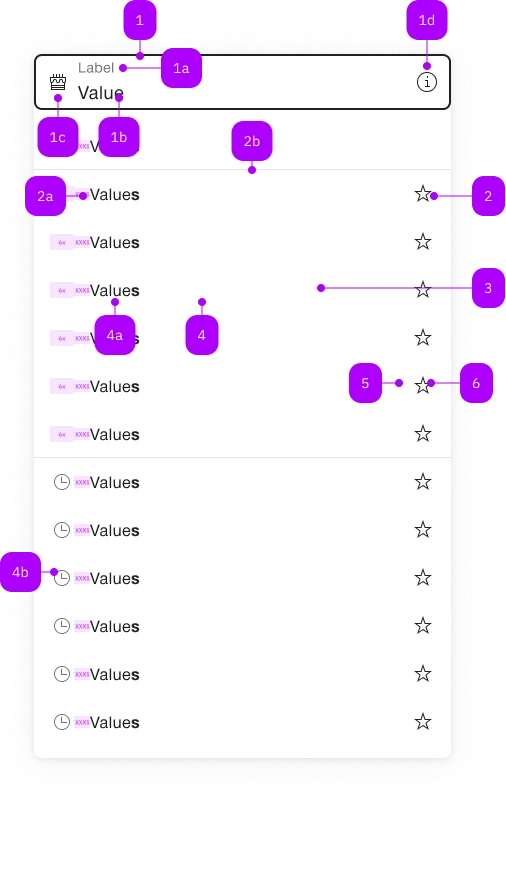
| Nummer | Typ | Beschreibung | Optional | Hinweis |
|---|---|---|---|---|
| 1 | Komponente | sbb-form-field | Nein | |
| 1a | Standard-HTML | label | Nein | |
| 1b | Standard-HTML | input | Nein | |
| 1c | Komponente | sbb-icon | Ja | Prefix |
| 1d | Komponente | sbb-icon | Ja | Suffix |
| 2 | Komponente | sbb-autocomplete-grid-optgroup | Ja | |
| 2a | Text | Label | Nein | |
| 2b | Komponente | sbb-divider | - | Erscheint bei einer sbb-autocomplete-grid-optgroup |
| 3 | Komponente | sbb-autocomplete-grid-row | Nein | |
| 4 | Komponente | sbb-autocomplete-grid-option | Nein | |
| 4a | Text | Value | Nein | |
| 4b | Komponente | sbb-icon | Ja | |
| 5 | Komponente | sbb-autocomplete-grid-cell | Ja | |
| 6 | Komponente | sbb-autocomplete-grid-button | Ja |
Spielwiese
The <sbb-autocomplete-grid> is a component that can be used to display a panel of suggested options connected to a text input,
with each option connected to one or more buttons.
Use it when you need an autocomplete in which every selectable option in the panel needs one or more related button.
If you don't need actions, use the sbb-autocomplete.
The component is strictly connected to:
- the
<sbb-autocomplete-grid-row>, which is a wrapper for both option and buttons; - the
<sbb-autocomplete-grid-option>, which displays a selectable option within a panel;` - the
<sbb-autocomplete-grid-cell>, which is a wrapper a for button element; - the
<sbb-autocomplete-grid-button>, which displays a button within a row; - the
<sbb-autocomplete-grid-optgroup>, which can be used to group more row within a group.
It's possible to set the element to which the component's panel will be attached using the origin prop,
and the input which will work as a trigger using the trigger prop.
Both accept an id or an element reference.
<!-- Origin element -->
<div id="autocomplete-origin">Another origin</div>

<!-- Trigger element -->
<input id="autocomplete-txt" placeholder="Another trigger element" />

<sbb-autocomplete-grid origin="autocomplete-origin" trigger="autocomplete-txt">
  <sbb-autocomplete-grid-row>
    <sbb-autocomplete-grid-option value="1">Option 1</sbb-autocomplete-grid-option>
    <sbb-autocomplete-grid-cell>
      <sbb-autocomplete-grid-button icon-name="pen-small"></sbb-autocomplete-grid-button>
    </sbb-autocomplete-grid-cell>
  </sbb-autocomplete-grid-row>
  <sbb-autocomplete-grid-row>
    <sbb-autocomplete-grid-option value="2">Option 2</sbb-autocomplete-grid-option>
    <sbb-autocomplete-grid-cell>
      <sbb-autocomplete-grid-button icon-name="trash-small"></sbb-autocomplete-grid-button>
    </sbb-autocomplete-grid-cell>
  </sbb-autocomplete-grid-row>
</sbb-autocomplete-grid>
In <sbb-form-field>
If the component is used within a sbb-form-field,
it will automatically connect to the native <input> as trigger and will display the option panel above or below the <sbb-form-field>.
<!-- Origin element -->
<sbb-form-field>
  <label>Label</label>
  <!-- Trigger element -->
  <input placeholder="Trigger element" />

  <sbb-autocomplete-grid>
    <sbb-autocomplete-grid-row>
      <sbb-autocomplete-grid-option value="1">Option 1</sbb-autocomplete-grid-option>
      <sbb-autocomplete-grid-cell>
        <sbb-autocomplete-grid-button icon-name="pen-small"></sbb-autocomplete-grid-button>
      </sbb-autocomplete-grid-cell>
    </sbb-autocomplete-grid-row>
    <sbb-autocomplete-grid-row>
      <sbb-autocomplete-grid-option value="2">Option 2</sbb-autocomplete-grid-option>
      <sbb-autocomplete-grid-cell>
        <sbb-autocomplete-grid-button icon-name="trash-small"></sbb-autocomplete-grid-button>
      </sbb-autocomplete-grid-cell>
    </sbb-autocomplete-grid-row>
  </sbb-autocomplete-grid>
</sbb-form-field>
Style
Option highlight
By default, the <sbb-autocomplete-grid> will highlight the label of the <sbb-autocomplete-grid-option> in the panel,
if it matches the typed text.
Option grouping
The displayed <sbb-autocomplete-grid-option> can be collected into groups using <sbb-autocomplete-grid-optgroup> element:
<!-- Origin element -->
<sbb-form-field>
  <label>Label</label>
  <!-- Trigger element -->
  <input placeholder="Trigger element" />

  <sbb-autocomplete-grid>
    <sbb-autocomplete-grid-optgroup>
      <sbb-autocomplete-grid-row>
        <sbb-autocomplete-grid-option value="1">Option 1</sbb-autocomplete-grid-option>
        <sbb-autocomplete-grid-cell>
          <sbb-autocomplete-grid-button icon-name="pen-small"></sbb-autocomplete-grid-button>
        </sbb-autocomplete-grid-cell>
      </sbb-autocomplete-grid-row>
      ...
    </sbb-autocomplete-grid-optgroup>
    <sbb-autocomplete-grid-optgroup>
      <sbb-autocomplete-grid-row>
        <sbb-autocomplete-grid-option value="100">Option 100</sbb-autocomplete-grid-option>
        <sbb-autocomplete-grid-cell>
          <sbb-autocomplete-grid-button icon-name="pen-small"></sbb-autocomplete-grid-button>
        </sbb-autocomplete-grid-cell>
      </sbb-autocomplete-grid-row>
      ...
    </sbb-autocomplete-grid-optgroup>
  </sbb-autocomplete-grid>
</sbb-form-field>
Size
The component has no size property but, when slotted in a <sbb-form-field>, it adapts to the parent size.
<sbb-form-field size="s">
  <label>Label</label>
  <input placeholder="Trigger element" />
  <sbb-autocomplete-grid> ... </sbb-autocomplete-grid>
</sbb-form-field>
Events
The <sbb-autocomplete-grid-option> emits the autocompleteoptionselected event when selected via user interaction.
Keyboard interaction
The options panel opens on focus, click or input events on the trigger element, or on ArrowDown keypress;
it can be closed on backdrop click, or using the Escape or Tab keys.
| Keyboard | Action |
|---|---|
| Down Arrow | Navigate to the next option. Open the panel, if closed. |
| Up Arrow | Navigate to the previous option. |
| Right Arrow | Navigate to the next button. |
| Left Arrow | Navigate to the previous button. |
| Enter | Select the active option/button. |
| Escape | Close the autocomplete panel. |
Setting the autoSelectActiveOption property to true allows users
to automatically select the option reached via keyboard navigation as the input value,
without having to press the Enter key to confirm.
On the other hand, it's possible to use the requireSelection to clear the input
if the user does not explicitly select a value, via mouse click or keyboard selection.
Accessibility
The <sbb-autocomplete-grid> implements the ARIA combobox-grid interaction pattern.
The text input trigger specifies role="combobox" while the content of the pop-up applies role="grid".
The inner option and actions have role="gridcell", while the buttons inside the action have role="button".
Note that since the focus must always be on the connected input, those buttons can't be reached via Tab,
but only with arrow navigation; note also that when a button is reached, going up or down will move to the previous/next option
and not to the previous/next button.
The component preserves focus on the input trigger,
using aria-activedescendant to support navigation though the autocomplete options.
Complex Values
This component supports any types of values, including complex objects.
The type can be specified using the generic type parameter T of SbbAutocompleteGrid<T> and SbbAutocompleteGridOption<T>.
const values = [
  { value: 'value 1', name: 'Option 1' },
  { value: 'value 2', name: 'Option 2' },
];
<sbb-form-field>
  <input />
  <sbb-autocomplete-grid .displayWith="${(value) => value.name}">
    <sbb-autocomplete-grid-row>
      <sbb-autocomplete-grid-option .value="${values[0]}">Option 1</sbb-autocomplete-grid-option>
      ...
    </sbb-autocomplete-grid-row>
    <sbb-autocomplete-grid-row>
      <sbb-autocomplete-grid-option .value="${values[1]}">Option 2</sbb-autocomplete-grid-option>
      ...
    </sbb-autocomplete-grid-row>
  </sbb-autocomplete-grid>
</sbb-form-field>
displayWith function
When using complex values, the selection should most likely still be represented as text.
To achieve this, you can use the displayWith property which accepts a function.
This function receives the selected value and should return a string.
Please note that the parameter is the assigned value of the selected option which does not necessarily
align with the type information.
API Documentation
class: SbbAutocompleteGridButtonElement, sbb-autocomplete-grid-button
Properties
| Name | Attribute | Privacy | Type | Default | Description |
|---|---|---|---|---|---|
optgroup | - | public | SbbAutocompleteGridOptgroupElement | null | ||
option | - | public | SbbAutocompleteGridOptionElement | null | Gets the SbbAutocompleteGridOptionElement on the same row of the button. |
Slots
| Name | Description |
|---|---|
icon | Slot used to display the icon, if one is set |
class: SbbAutocompleteGridCellElement, sbb-autocomplete-grid-cell
Slots
| Name | Description |
|---|---|
Use the unnamed slot to add a sbb-autocomplete-grid-button element. |
class: SbbAutocompleteGridElement, sbb-autocomplete-grid
CSS Properties
| Name | Default | Description |
|---|---|---|
--sbb-autocomplete-z-index | var(--sbb-overlay-default-z-index) | To specify a custom stack order, the z-index can be overridden by defining this CSS variable. The default z-index of the component is set to var(--sbb-overlay-default-z-index) with a value of 1000. |
--sbb-options-panel-max-height | Maximum height of the options panel. If the calculated remaining space is smaller, the value gets ignored. |
Slots
| Name | Description |
|---|---|
Use the unnamed slot to add sbb-autocomplete-grid-row or sbb-autocomplete-grid-optgroup elements to the sbb-autocomplete-grid. |
class: SbbAutocompleteGridOptgroupElement, sbb-autocomplete-grid-optgroup
Slots
| Name | Description |
|---|---|
Use the unnamed slot to add sbb-autocomplete-grid-option elements to the sbb-autocomplete-grid-optgroup. |
class: SbbAutocompleteGridOptionElement, sbb-autocomplete-grid-option
CSS Properties
| Name | Default | Description |
|---|---|---|
--sbb-option-icon-container-display | none | Can be used to reserve space even when preserve-icon-space on autocomplete is not set or iconName is not set. |
Slots
| Name | Description |
|---|---|
| Use the unnamed slot to add content to the option label. | |
icon | Use this slot to provide an icon. If icon-name is set, a sbb-icon will be used. |
class: SbbAutocompleteGridRowElement, sbb-autocomplete-grid-row
Slots
| Name | Description |
|---|---|
Use the unnamed slot to add a sbb-autocomplete-grid-option and a sbb-autocomplete-grid-cell with one or more sbb-autocomplete-grid-button. |