Zur NavigationZum InhaltKontaktMenuFind componentOverview MobileFind component
More Info
Brand
Display
FigmaCode
More Info
Image
Display
FigmaCode
More Info
Typography
Basics
FigmaCode
More Info
Bottom-Sheet
NavigationContainer
FigmaCode
More Info
Button
Action
FigmaCode
More Info
Checkbox
Form
FigmaCode
More Info
Chip
Form
FigmaCode
More Info
Container
Container
FigmaCode
More Info
Context-Menu
Navigation
FigmaCode
More Info
Dropdown
NavigationForm
FigmaCode
More Info
Header
Navigation
FigmaCode
More Info
Header-Box
Navigation
FigmaCode
More Info
Stepper
Navigation
FigmaCode
More Info
List-Item
Action
FigmaCode
More Info
List-View
Container
FigmaCode
More Info
Loading-Indicator
Indicator
FigmaCode
More Info
Message
Indicator
FigmaCode
More Info
Notification-Box
Indicator
FigmaCode
More Info
Paginator
Indicator
FigmaCode
More Info
Picker
Form
FigmaCode
More Info
Promotion-Box
Container
FigmaCode
More Info
Radio-Button
Form
FigmaCode
More Info
Segmented-Button
Navigation
FigmaCode
More Info
Slider
Form
FigmaCode
More Info
Status
Indicator
FigmaCode
More Info
Switch
Form
FigmaCode
More Info
Tabbar
Navigation
FigmaCode
More Info
Text-Input
Form
FigmaCode
More Info
Textarea
Form
FigmaCode
More Info
Toast
Indicator
FigmaCode
More Info
Up-Dn-Counter
FormIndicator
FigmaCode
No search results were found.
Try using different or fewer search terms.
PrinciplesFoundationAccessibilityDesign SystemGuidelinesDeutschFrançaisItalianoEnglishOur design principlesUser-centredRecognisableInclusiveReducedHolisticSelf-explanatoryTask-orientedAppropriateSBB Brand portalLogoDigital clockRights of useBase colorsAdditional colorsOff brand colorsIconsTimetable iconsPictogramsAbout accessibilityÜber diesen GuideContactFurther informationProduct OwnerUser ResearchInteraction DesignVisual DesignDevelopmentContent DesignTestingWhat is a design system?DesigningCodingFAQHelpProcessContributionContactOverviewBaseComponentsOverviewReleasesDesign TokensComponentsOverviewBaseInformationsOverviewBaseComponentsOverviewApp IconsPower-AppsDigital banner adsSAP Design GuidelinesAI Design: BasicsRadio-Button Overview
What does the component do?
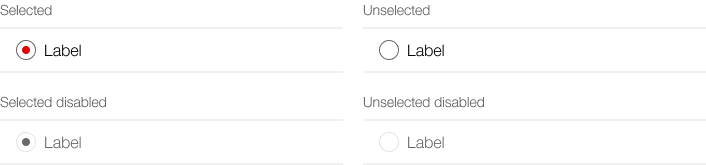
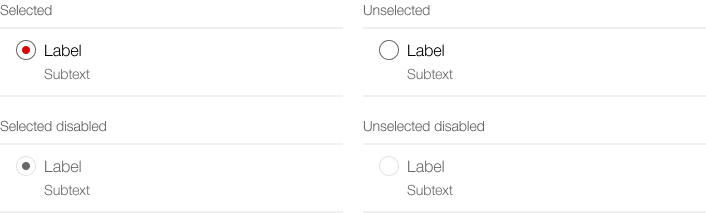
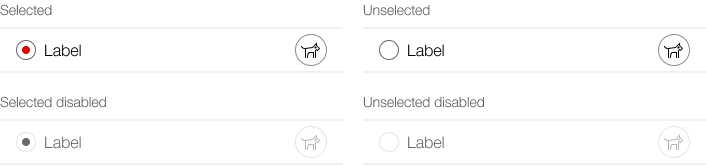
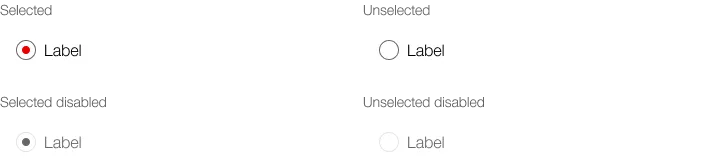
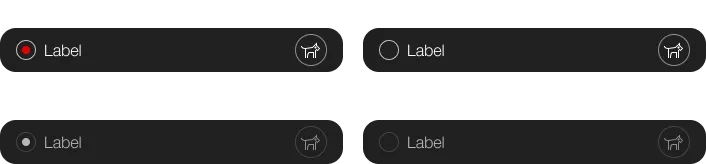
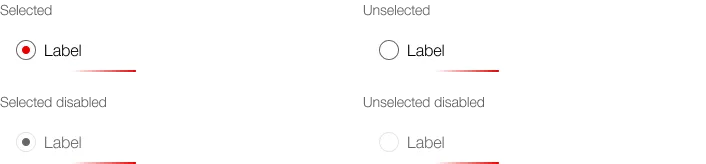
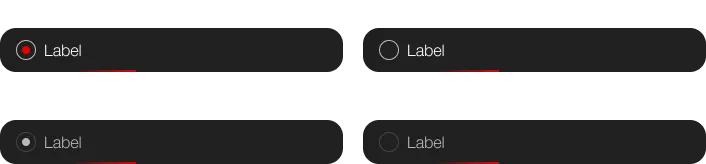
It is used for the selection of exactly one option from several.
When should the component be used?
When there are two or more options and the options mutually exclude one another.
Rules
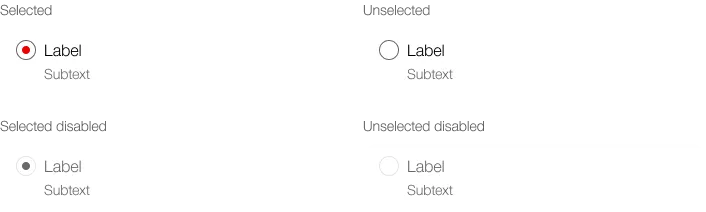
There must be a choice of at least two options.
A pre-selection is mandatory.
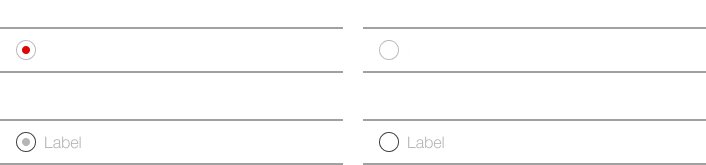
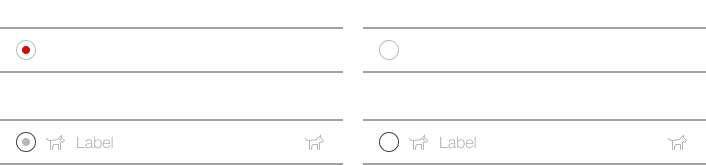
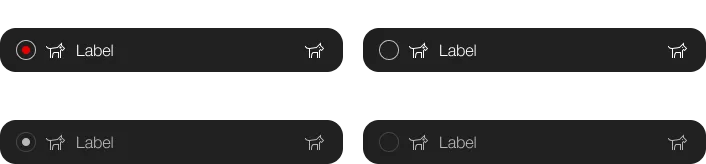
Radio buttons can be arranged vertically or horizontally. The vertical layout is preferred as it allows the user to understand the options more quickly.
Horizontal layout only for two to three options and short names.
The text can be multi-line.
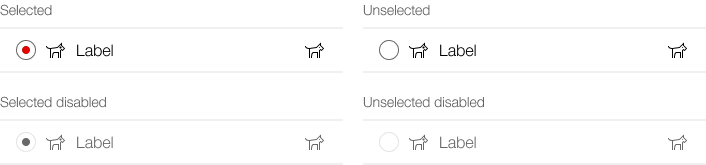
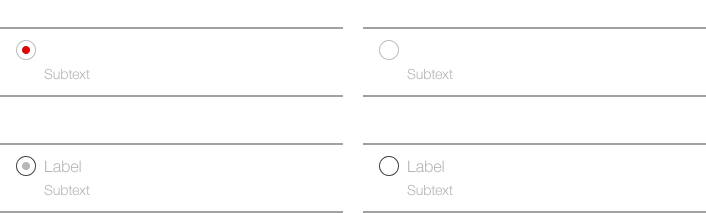
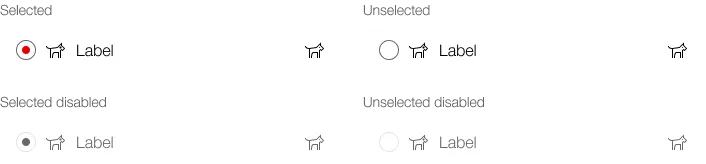
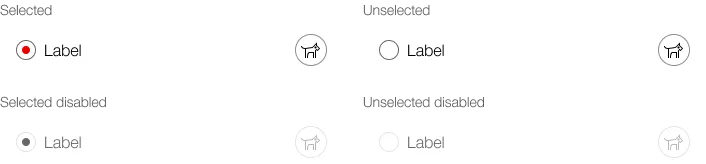
As well as the actual radio button, the entire text also serves as a click target.