What does the component do?
A teaser is a preview that is intended to arouse users' curiosity and encourage them to click on further content or pages.
When should the component be used?
- To highlight and promote content, articles, products or services.
- To make users aware of further information or interesting content.
Rules
- Use a catchy and inviting headline and a short, interesting description.
- Do not use too many different teaser types and sizes on one page.
- Several teasers can be structured with one title.
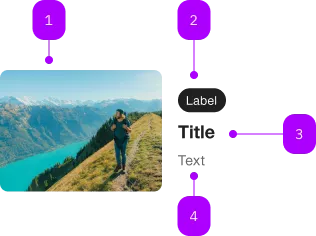
| Number | Type | Description | Optional | Info |
|---|---|---|---|---|
| 1 | Component | sbb-image | No | |
| 2 | Component | sbb-chip | Yes | |
| 3 | Component | sbb-title | No | |
| 4 | Text | Subtext | No |
Playground

The <sbb-teaser> is a component which can display an image with a caption, and it behaves like a link on user interaction.
Simple teaser example:
<sbb-teaser href="https://www.sbb.ch">
  <img slot="image" src="..." alt="400x300" />
  <sbb-chip-label>Chip label</sbb-chip-label>
  <sbb-title level="2">Title</sbb-title>
  A brief description.
</sbb-teaser>
Slots
The default slot is reserved for the description and,
optionally, a sbb-title and a sbb-chip-label.
The component displays the image with the self-named slot.
Use the image slot to pass a figure containing an <sbb-image> or an img that will be used as background.
Optionally, you can add an overlapping <sbb-chip-label> to the slotted figure (see sbb-image doc).
<sbb-teaser href="https://www.sbb.ch">
  <figure slot="image" class="sbb-figure">
    <img src="..." alt="400x300" />
    <sbb-chip-label class="sbb-figure-overlap-start-start">AI Generated</sbb-chip-label>
  </figure>
  <sbb-chip-label>Chip label</sbb-chip-label>
  <sbb-title level="2">Title</sbb-title>
  A brief description.
</sbb-teaser>
Style
Using the alignment property, it is possible to change the text position respect to the image.
Possible values are after-centered (default), after and below.
<sbb-teaser href="https://www.sbb.ch" alignment="below"> ... </sbb-teaser>
By default, the image dimensions are set using the width and the aspect ratio.
Default values are 300px and 4/3. Consumers can change these values on their slotted image element.
Flexible Layouts
If using the teaser in a flexible layout like CSS grid or flex together with alignment=below,
the CSS variable --sbb-teaser-align-items with stretch as value can be used
to achieve the image width taking the full available space. On the image itself, the width must be set to 100%.
<div style="display: grid; gap: 1rem; grid-template-rows: repeat(2, 1fr)">
  <sbb-teaser style="--sbb-teaser-align-items: stretch" href="https://www.sbb.ch" alignment="below">
    <sbb-image style="width: 100%;" slot="image" image-src="..." alt="description"></sbb-image>
    ...
  </sbb-teaser>
  <sbb-teaser style="--sbb-teaser-align-items: stretch" href="https://www.sbb.ch" alignment="below">
    <sbb-image style="width: 100%;" slot="image" image-src="..." alt="description"></sbb-image>
    ...
  </sbb-teaser>
</div>
Accessibility
It's important to set the accessibilityLabel on the <sbb-teaser>, which describes the <sbb-teaser> for screen-reader users.
The description text is wrapped into an <p> element to guarantee the semantic meaning.
API Documentation
class: SbbTeaserElement, sbb-teaser
Properties
| Name | Attribute | Privacy | Type | Default | Description |
|---|---|---|---|---|---|
accessibilityCurrent | accessibility-current | public | string | '' | This will be forwarded as aria-current to the inner anchor element. |
accessibilityLabel | accessibility-label | public | string | '' | This will be forwarded as aria-label to the inner anchor element. |
alignment | alignment | public | 'after-centered' | 'after' | 'below' | 'after-centered' | Teaser variant - define the position and the alignment of the text block. |
download | download | public | boolean | false | Whether the browser will show the download dialog on click. |
href | href | public | string | '' | The href value you want to link to. |
rel | rel | public | string | '' | The relationship of the linked URL as space-separated link types. |
target | target | public | LinkTargetType | string | '' | Where to display the linked URL. |
Slots
| Name | Description |
|---|---|
| Use the unnamed slot to render the description, the sbb-title and the sbb-chip-label. | |
chip | Slot for the sbb-chip-label element. The slot on the sbb-chip-label element is automatically assigned when slotted in the unnamed slot. |
image | Slot used to render the image. |
title | Slot for the title. For the standard sbb-title element, the slot is automatically assigned when slotted in the unnamed slot. |