What does the component do?
It is part of the tag-group component.
When should the component be used?
- Only within the tag-group component.
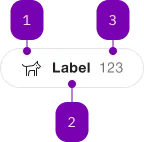
| Number | Type | Description | Optional | Info |
|---|---|---|---|---|
| 1 | Component | sbb-icon | Yes | |
| 2 | Text | No | ||
| 3 | Text | Yes | Für Zusatzinfo: Nur Zahlen erlaubt. |
Playground
The sbb-tag is a component that can be used as a filter in order to categorize a large amount of information.
It's intended to be used inside the sbb-tag-group component.
<sbb-tag value="All">All</sbb-tag>
Slots
It is possible to provide a label via an unnamed slot; the component can optionally display a sbb-icon
at the component start using the iconName property or via custom content using the icon slot.
It's also possible to display a numeric amount at the component's end using the amount property or slot.
<sbb-tag value="All" icon-name="pie-small" amount="123"> All </sbb-tag>

<sbb-tag value="None">
  <sbb-icon slot="icon" name="pie-small"></sbb-icon>
  None
  <span slot="amount">123</span>
</sbb-tag>
States
The component can be displayed in checked or disabled state using the self-named property.
<sbb-tag checked value="All" amount="123">All</sbb-tag>

<sbb-tag disabled value="All" icon-name="circle-information-small">All</sbb-tag>
Style
The component has two sizes, named m (default) and s. The size property can also be set on the sbb-tag-group where it will be applied to all tags inside the group.
<sbb-tag value="All" size="m">All</sbb-tag>

<sbb-tag value="All" size="s">All</sbb-tag>
Events
Consumers can listen to the native change and input events on the sbb-tag.
The current state can be read from event.target.checked, while the value from event.target.value.
It's recommended to check the parent's sbb-tag-group for the value.
Accessibility
The component imitates an button element to provide an accessible experience.
The state is reflected via aria-pressed attribute.
Interactive disabled buttons
Native disabled elements cannot receive focus and do not dispatch any events. This can
be problematic in some cases because it can prevent the app from telling the user why the button is
disabled. Consumers can use the disabledInteractive property to style the button as disabled but allow for
it to receive focus and dispatch events. The button will have aria-disabled="true" for assistive
technology. It is the consumers responsibility to provide a reason for the element being disabled.
This can be achieved by adding an aria-label, aria-labelledby or aria-describedby attribute.
Note: Using the disabledInteractive property can result in buttons that previously prevented
actions to no longer do so, for example a submit button in a form. When using this input, you should
guard against such cases in your component.
Disabled elements
Generally speaking, disabled elements are considered a bad pattern for accessibility. They are invisible to assistive
technology and do not provide the reason for which they are disabled.
To partially address the problem, disabled elements are kept focusable (other interactions are still prevented).
However, it is still the consumers responsibility to provide a reason for the element being disabled.
This can be achieved by adding an aria-label, aria-labelledby or aria-describedby attribute.
Complex Values
This component supports any types of values, including complex objects.
The type can be specified using the generic type parameter T of SbbTag<T>.
<sbb-tag .value=${{value: 'value', name: 'name'}} name="name">Option</sbb-tag>
Properties
| Name | Attribute | Privacy | Type | Default | Description |
|---|---|---|---|---|---|
amount | amount | public | string | '' | Amount displayed inside the tag. |
checked | checked | public | boolean | false | Whether the tag is checked. |
disabled | disabled | public | boolean | false | Whether the component is disabled. |
disabledInteractive | disabled-interactive | public | boolean | false | Whether the button should be aria-disabled but stay interactive. |
form | - | public | HTMLFormElement | null | Returns the form owner of this element. | |
iconName | icon-name | public | string | '' | The icon name we want to use, choose from the small icon variants from the ui-icons category from here https://icons.app.sbb.ch. |
name | name | public | string | Name of the form element. Will be read from name attribute. | |
size | size | public | SbbTagSize | 'm' / 's' (lean) | Tag size, either s or m. |
validationMessage | - | public | string | Returns the current error message, if available, which corresponds to the current validation state. Please note that only one message is returned at a time (e.g. if multiple validity states are invalid, only the chronologically first one is returned until it is fixed, at which point the next message might be returned, if it is still applicable). Also, a custom validity message (see below) has precedence over native validation messages. | |
validity | - | public | ValidityState | Returns the ValidityState object for this element. | |
value | value | public | (T = string) | null | null | Value of the form element. |
willValidate | - | public | boolean | Returns true if this element will be validated when the form is submitted; false otherwise. |
Methods
| Name | Privacy | Description | Parameters | Return | Inherited From |
|---|---|---|---|---|---|
checkValidity | public | Returns true if this element has no validity problems; false otherwise. Fires an invalid event at the element in the latter case. | boolean | SbbFormAssociatedMixin | |
reportValidity | public | Returns true if this element has no validity problems; otherwise, returns false, fires an invalid event at the element, and (if the event isn't canceled) reports the problem to the user. | boolean | SbbFormAssociatedMixin | |
setCustomValidity | public | Sets the custom validity message for this element. Use the empty string to indicate that the element does not have a custom validity error. | message: string | void | SbbFormAssociatedMixin |
Events
| Name | Type | Description | Inherited From |
|---|---|---|---|
change | Event | The change event is fired when the user modifies the element's value. Unlike the input event, the change event is not necessarily fired for each alteration to an element's value. | |
didChange | Event | Deprecated. Mirrors change event for React. Will be removed once React properly supports change events. | |
input | InputEvent | The input event fires when the value has been changed as a direct result of a user action. |
Slots
| Name | Description |
|---|---|
| Use the unnamed slot to add content to the tag label. | |
amount | Provide an amount to show it at the component end. |
icon | Use this slot to display an icon at the component start, by providing a sbb-icon component. |