What does the component do?
A menu shows context-dependent actions or options for a defined element. It can be called up by another interactive element like e.g. a button.
When should the component be used?
- To provide users with quick access to frequently used actions or options that are relevant for a specific element.
- When compact and contextualised navigation is required.
- To increase usability by providing additional options directly at the point of action.
Rules
- Menu options should be clearly labelled and easy to understand.
- Make sure that the menu options are logically grouped and arranged in a useful order.
- Avoid too many options in a context menu to ensure clarity and not overwhelm users.
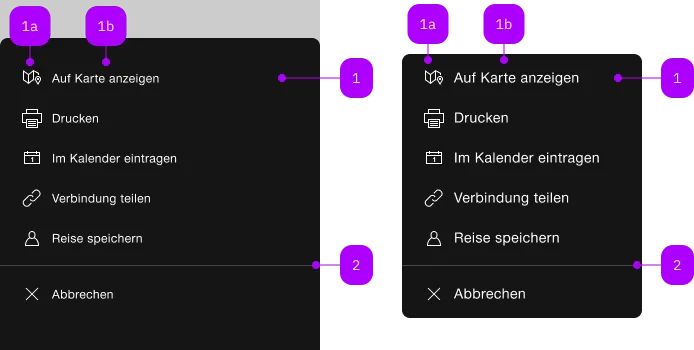
| Number | Type | Description | Optional | Info |
|---|---|---|---|---|
| 1 | Component | sbb-menu-button oder sbb-menu-link | No | |
| 1a | Component | sbb-icon | No | |
| 1b | Text | Label | Yes | |
| 2 | Component | sbb-divider | Yes |
Playground
The <sbb-menu> is a component that can be attached to any element to open and display a custom context menu,
which allows to perform actions relevant to the current task by using the <sbb-menu-button>
or to navigate within or outside the application by using the <sbb-menu-link> component along with it.
<!-- Trigger element -->
<sbb-button id="menu-trigger">Menu trigger</sbb-button>

<!-- Menu component with menu actions -->
<sbb-menu trigger="menu-trigger">
  <sbb-menu-link icon="link-small" href="https://www.sbb.ch/en">View</sbb-menu-link>
  <sbb-menu-button icon="pen-small">Edit</sbb-menu-button>
  <sbb-menu-button icon="swisspass-small" sbb-badge="12" aria-label="Details, containing 12 items">
    Details
  </sbb-menu-button>
  <sbb-divider></sbb-divider>
  <sbb-menu-button icon="cross-small">Cancel</sbb-menu-button>
</sbb-menu>
Interactions
The element that will trigger the menu dialog must be set using the trigger property.
The <sbb-menu> appears on trigger left click, and it is displayed as a sheet with a backdrop on mobile,
while on desktop it will be shown as a floating menu, and it will calculate the optimal position relative to the trigger element
by evaluating the available space with the following priority: start/below, start/above, end/below, end/above.
Clicking in the backdrop or pressing the ESC key closes the menu.
You can also provide custom content inside the <sbb-menu>:
<!-- Trigger element -->
<sbb-button id="menu-trigger">Menu trigger</sbb-button>

<!-- Menu component with custom content and menu actions -->
<sbb-menu trigger="menu-trigger">
  <div>Christina Müller</div>
  <span>UIS9057</span>
  <sbb-block-link href="https://www.sbb.ch/en" size="xs">Profile</sbb-block-link>
  <sbb-divider></sbb-divider>
  <sbb-menu-link icon="link-small" href="https://www.sbb.ch/en">View</sbb-menu-link>
  <sbb-menu-button icon="pen-small">Edit</sbb-menu-button>
  <sbb-menu-button icon="swisspass-small" sbb-badge="12" aria-label="Details, containing 12 items">
    Details
  </sbb-menu-button>
  <sbb-divider></sbb-divider>
  <sbb-menu-button icon="cross-small">Cancel</sbb-menu-button>
</sbb-menu>
Nesting menus
It is possible to create submenus by connecting a menu to a <sbb-menu-button>/<sbb-menu-link>
element via trigger property / attribute of the <sbb-menu>.
On smaller screens, submenus will automatically display a back button to navigate back to the parent menu.
Please note that nesting the menus in DOM is not supported. The <sbb-menu> elements have to be siblings in order to work.
<sbb-menu>
  <sbb-menu-button icon="pen-small" id="submenu-trigger">Submenu trigger</sbb-menu-button>
</sbb-menu>
<sbb-menu trigger="submenu-trigger">
  <sbb-menu-link icon="link-small" href="https://www.sbb.ch/en">View</sbb-menu-link>
  <sbb-menu-button icon="swisspass-small" sbb-badge="12">Details</sbb-menu-button>
</sbb-menu>
Menu Actions
There are two types of menu actions: links and buttons, represented by the <sbb-menu-link>
and <sbb-menu-button> components respectively.
<sbb-menu-link href="#info" target="_blank">Link</sbb-menu-link>
<sbb-menu-button>Button</sbb-menu-button>
The components can optionally display an <sbb-icon> at the component start using the iconName property
or via custom content using the icon slot.
<sbb-menu-link href="#" icon-name="pie-small">Another text</sbb-menu-link>
<sbb-menu-button><sbb-icon slot="icon" name="pie-small" />Another text</sbb-menu-button>
Badge
A badge can be rendered on the icon as white text in a red circle via the sbb-badge attribute.
It's recommended to hide the badge when the menu action is disabled.
It's mandatory to provide the badge information for screen readers either with an aria-label
(or accessibility-label for <sbb-menu-link>) or a hidden text (<sbb-screen-reader-only> for example).
<sbb-menu-link
  href="#"
  sbb-badge="2"
  accessibility-label="Show messages, 2 new messages available"
  icon-name="pie-small"
>
  Messages
</sbb-menu-link>
<sbb-menu-button
  sbb-badge="2"
  aria-label="Show messages, 2 new messages available"
  icon-name="pie-small"
>
  Messages
</sbb-menu-button>
Accessibility
The <sbb-menu> uses the roles menu and menuitem for children.
As the menu opens, the focus will automatically be set to the first focusable
item within the component (unless manually specified, see below).
When using the <sbb-menu> as a select (e.g. language selection) it's recommended to use the aria-pressed attribute
to identify which actions are active and which are not.
It is possible to navigate the slotted <sbb-menu-button>/<sbb-menu-link> via keyboard using arrow keys or page keys
(Home, PageUp, End and PageDown).
If the trigger element for a nested menu is focused, ArrowRight will open and focus the submenu;
if the focus is currently on a nested menu, ArrowLeft will close the current menu and go back to the parent menu.
Controlling initial focus
The first element with the attribute sbb-focus-initial will receive focus on opening.
If the attribute is not used, the first focusable element receives focus (recommended).
<sbb-menu>
  <sbb-block-link href="https://www.sbb.ch/en" size="xs">Profile</sbb-block-link>
  <sbb-menu-link sbb-initial-focus icon="link-small" href="https://www.sbb.ch/en">
    Receives initial focus
  </sbb-menu-link>
</sbb-menu>
Interactive disabled buttons
Native disabled elements cannot receive focus and do not dispatch any events. This can
be problematic in some cases because it can prevent the app from telling the user why the button is
disabled. Consumers can use the disabledInteractive property to style the button as disabled but allow for
it to receive focus and dispatch events. The button will have aria-disabled="true" for assistive
technology. It is the consumers responsibility to provide a reason for the element being disabled.
This can be achieved by adding an aria-label, aria-labelledby or aria-describedby attribute.
Note: Using the disabledInteractive property can result in buttons that previously prevented
actions to no longer do so, for example a submit button in a form. When using this input, you should
guard against such cases in your component.
<sbb-menu>
  ...
  <sbb-menu-button disabled-interactive> Edit </sbb-menu-button>
  ...
</sbb-menu>
API Documentation
class: SbbMenuButtonElement, sbb-menu-button
Properties
| Name | Attribute | Privacy | Type | Default | Description |
|---|---|---|---|---|---|
disabled | disabled | public | boolean | false | Whether the component is disabled. |
disabledInteractive | disabled-interactive | public | boolean | false | Whether the button should be aria-disabled but stay interactive. |
form | form | public | HTMLFormElement | null | The <form> element to associate the button with. | |
iconName | icon-name | public | string | '' | The icon name we want to use, choose from the small icon variants from the ui-icons category from here https://icons.app.sbb.ch. |
name | name | public | string | Name of the form element. Will be read from name attribute. | |
type | type | public | SbbButtonType | 'button' | The type attribute to use for the button. |
validationMessage | - | public | string | Returns the current error message, if available, which corresponds to the current validation state. Please note that only one message is returned at a time (e.g. if multiple validity states are invalid, only the chronologically first one is returned until it is fixed, at which point the next message might be returned, if it is still applicable). Also, a custom validity message (see below) has precedence over native validation messages. | |
validity | - | public | ValidityState | Returns the ValidityState object for this element. | |
value | value | public | string | '' | Value of the form element. |
willValidate | - | public | boolean | Returns true if this element will be validated when the form is submitted; false otherwise. |
Methods
| Name | Privacy | Description | Parameters | Return | Inherited From |
|---|---|---|---|---|---|
checkValidity | public | Returns true if this element has no validity problems; false otherwise. Fires an invalid event at the element in the latter case. | boolean | SbbFormAssociatedMixin | |
reportValidity | public | Returns true if this element has no validity problems; otherwise, returns false, fires an invalid event at the element, and (if the event isn't canceled) reports the problem to the user. | boolean | SbbFormAssociatedMixin | |
setCustomValidity | public | Sets the custom validity message for this element. Use the empty string to indicate that the element does not have a custom validity error. | message: string | void | SbbFormAssociatedMixin |
CSS Properties
| Name | Default | Description |
|---|---|---|
--sbb-menu-action-outer-horizontal-padding | var(--sbb-spacing-fixed-3x) | Can be used to modify horizontal padding. |
Slots
| Name | Description |
|---|---|
Use the unnamed slot to add content to the sbb-menu-button. | |
icon | Use this slot to provide an icon. If icon-name is set, a sbb-icon will be used. |
class: SbbMenuElement, sbb-menu
Properties
| Name | Attribute | Privacy | Type | Default | Description |
|---|---|---|---|---|---|
isOpen | - | public | boolean | Whether the element is open. | |
trigger | trigger | public | HTMLElement | null | null | The element that will trigger the menu overlay. For attribute usage, provide an id reference. |
Methods
| Name | Privacy | Description | Parameters | Return | Inherited From |
|---|---|---|---|---|---|
close | public | Closes the menu and all its nested menus. | void | SbbOpenCloseBaseElement | |
closeAll | public | Closes the menu and all related menus (nested and parent menus). | void | ||
escapeStrategy | public | The method which is called on escape key press. Defaults to calling close() | void | SbbOpenCloseBaseElement | |
open | public | Opens the menu on trigger click. | void | SbbOpenCloseBaseElement |
Events
| Name | Type | Description | Inherited From |
|---|---|---|---|
beforeclose | Event | Emits whenever the component begins the closing transition. Can be canceled. | SbbOpenCloseBaseElement |
beforeopen | Event | Emits whenever the component starts the opening transition. Can be canceled. | SbbOpenCloseBaseElement |
close | Event | Emits whenever the component is closed. | SbbOpenCloseBaseElement |
open | Event | Emits whenever the component is opened. | SbbOpenCloseBaseElement |
CSS Properties
| Name | Default | Description |
|---|---|---|
--sbb-menu-z-index | var(--sbb-overlay-default-z-index) | To specify a custom stack order, the z-index can be overridden by defining this CSS variable. The default z-index of the component is set to var(--sbb-overlay-default-z-index) with a value of 1000. |
Slots
| Name | Description |
|---|---|
Use the unnamed slot to add sbb-menu-button/sbb-menu-link or other elements to the menu. |
class: SbbMenuLinkElement, sbb-menu-link
Properties
| Name | Attribute | Privacy | Type | Default | Description |
|---|---|---|---|---|---|
accessibilityCurrent | accessibility-current | public | string | '' | This will be forwarded as aria-current to the inner anchor element. |
accessibilityLabel | accessibility-label | public | string | '' | This will be forwarded as aria-label to the inner anchor element. |
disabled | disabled | public | boolean | false | Whether the component is disabled. |
disabledInteractive | disabled-interactive | public | boolean | false | Whether the button should be aria-disabled but stay interactive. |
download | download | public | boolean | false | Whether the browser will show the download dialog on click. |
href | href | public | string | '' | The href value you want to link to. |
iconName | icon-name | public | string | '' | The icon name we want to use, choose from the small icon variants from the ui-icons category from here https://icons.app.sbb.ch. |
rel | rel | public | string | '' | The relationship of the linked URL as space-separated link types. |
target | target | public | LinkTargetType | string | '' | Where to display the linked URL. |
CSS Properties
| Name | Default | Description |
|---|---|---|
--sbb-menu-action-outer-horizontal-padding | var(--sbb-spacing-fixed-3x) | Can be used to modify horizontal padding. |
Slots
| Name | Description |
|---|---|
Use the unnamed slot to add content to the sbb-menu-link. | |
icon | Use this slot to provide an icon. If icon-name is set, a sbb-icon will be used. |