What does the component do?
The component offers suggestions to the user during input, based on existing data or previous input, to make input easier and faster.
When should the component be used?
- To improve the data input experience by suggesting possible/allowed inputs.
- To increase the accuracy and consistency of the data input.
- To reduce the time users need to fill in forms.
Rules
- The component should not be used for small data sets (e.g. only 10 entries/options).
- The autocomplete list should not display too many suggestions at once in order to maintain clarity (max. 10 suggestions).
- Users should be able to ignore the autocomplete function and make their own entries.
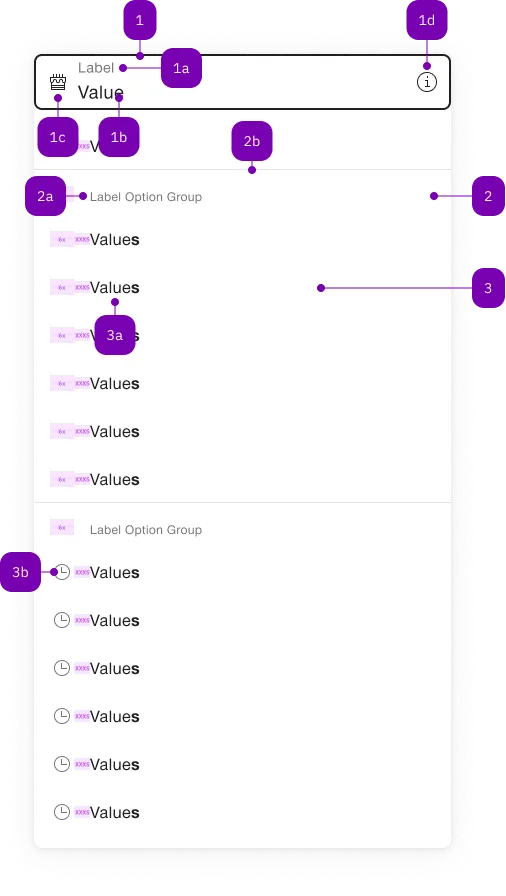
| Number | Type | Description | Optional | Info |
|---|---|---|---|---|
| 1 | Component | sbb-form-field | No | |
| 1a | Standard-HTML | label | No | |
| 1b | Standard-HTML | input | No | |
| 1c | Component | sbb-icon | Yes | Prefix |
| 1d | Component | sbb-icon | Yes | Suffix |
| 2 | Component | sbb-optgroup | Yes | |
| 2a | Text | Label | No | |
| 2b | Component | sbb-divider | - | Appears with an optgroup |
| 3 | Component | sbb-option | No | |
| 3a | Text | Value | No | |
| 3b | Component | sbb-icon | Yes |
Playground
The <sbb-autocomplete> is a component that can be used to display a panel of suggested options connected to a text input.
Use it when you need a basic autocomplete: a panel with a list of selectable and possibly grouped options.
If you need buttons connected to the options, use the sbb-autocomplete-grid.
It's possible to set the element to which the component's panel will be attached using the origin prop,
and the input which will work as a trigger using the trigger prop.
Both accept an id or an element reference.
<!-- Origin element -->
<div id="autocomplete-origin">Another origin</div>

<!-- Trigger element -->
<input id="autocomplete-txt" placeholder="Another trigger element" />

<sbb-autocomplete origin="autocomplete-origin" trigger="autocomplete-txt">
  <sbb-option value="Option A">Option A</sbb-option>
  <sbb-option value="Option B">Option B</sbb-option>
  <sbb-option value="Option C">Option C</sbb-option>
</sbb-autocomplete>
In <sbb-form-field>
If the component is used within a sbb-form-field,
it will automatically connect to the native <input> as trigger and will display the option panel above or below the <sbb-form-field>.
<!-- Origin element -->
<sbb-form-field>
  <label>Label</label>
  <!-- Trigger element -->
  <input placeholder="Trigger element" />

  <sbb-autocomplete>
    <sbb-option icon-name="clock-small" value="Option 1"> Option 1 </sbb-option>
    <sbb-option icon-name="clock-small" value="Option 2"> Option 2 </sbb-option>
    <sbb-option icon-name="clock-small" value="Option 3"> Option 3 </sbb-option>
  </sbb-autocomplete>
</sbb-form-field>
Style
Option highlight
By default, the autocomplete will highlight the label of the <sbb-option> in the panel, if it matches the typed text.
See the sbb-option for more details.
Option grouping
The displayed <sbb-option> can be collected into groups using <sbb-optgroup> element:
<!-- Origin element -->
<sbb-form-field>
  <label>Label</label>
  <!-- Trigger element -->
  <input placeholder="Trigger element" />

  <sbb-autocomplete>
    <sbb-optgroup label="Group 1">
      <sbb-option icon-name="clock-small" value="Option 1"> Option 1 </sbb-option>
      ...
    </sbb-optgroup>
    <sbb-optgroup label="Group 2"> ... </sbb-optgroup>
  </sbb-autocomplete>
</sbb-form-field>
Size
The component has no size property but, when slotted in a <sbb-form-field>, it adapts to the parent size.
<sbb-form-field size="s">
  <label>Label</label>
  <input placeholder="Trigger element" />
  <sbb-autocomplete> ... </sbb-autocomplete>
</sbb-form-field>
Ellipsis
It's possible to truncate the label (apply ellipsis) of slotted <sbb-option> elements with the sbb-options-nowrap CSS class.
To select which elements should be affected, the consumer can set the class on either the html tag, the <sbb-autocomplete>, or the single <sbb-option>.
Events
The <sbb-option> emits the optionSelected event when selected via user interaction.
Keyboard interaction
The options panel opens on focus, click or input events on the trigger element, or on ArrowDown keypress;
it can be closed on backdrop click, or using the Escape or Tab keys.
| Keyboard | Action |
|---|---|
| Down Arrow | Navigate to the next option. Open the panel, if closed. |
| Up Arrow | Navigate to the previous option. |
| Enter | Select the active option. |
| Escape | Close the autocomplete panel. |
autoSelectActiveOption
With autoSelectActiveOption enabled, navigating between options also selects them, without having to press the Enter.
The input and change events emission are postponed to when the panel is closed or on blur.
autoSelectActiveOptionOnBlur
With autoSelectActiveOptionOnBlur enabled, the active option is automatically selected when the input field loses focus.
To prevent accidental selections, this mechanism will not trigger if the input is cleared.
This can be used in combination with autoActiveFirstOption to speed up form completion in copy-paste scenarios.
Be aware that this can lead to unexpected behavior. Carefully test your use case.
requireSelection
Use the requireSelection to clear the input if the user does not explicitly select an option, via mouse click or keyboard selection.
Accessibility
The <sbb-autocomplete> implements the ARIA combobox interaction pattern.
The text input trigger specifies role="combobox" while the content of the pop-up applies role="listbox".
Because of this listbox pattern, you should not put other interactive controls, such as buttons or checkboxes, inside an autocomplete option.
Nesting interactive controls like this interferes with many assistive technologies.
The component preserves focus on the input trigger,
using aria-activedescendant to support navigation though the autocomplete options.
Complex Values
This component supports any types of values, including complex objects.
The type can be specified using the generic type parameter T of SbbAutocomplete<T> and SbbOption<T>.
const values = [
  { value: 'value 1', name: 'Option 1' },
  { value: 'value 2', name: 'Option 2' },
];
<sbb-form-field>
  <input />
  <sbb-autocomplete .displayWith="${(value) => value.name}">
    <sbb-option .value="${values[0]}">Option 1</sbb-option>
    <sbb-option .value="${values[1]}">Option 2</sbb-option>
  </sbb-autocomplete>
</sbb-form-field>
displayWith function
When using complex values, the selection should most likely still be represented as text.
To achieve this, you can use the displayWith property which accepts a function.
This function receives the selected value and should return a string.
Please note that the parameter is the assigned value of the selected option which does not necessarily
align with the type information.
API Documentation
class: SbbAutocompleteElement, sbb-autocomplete
Properties
| Name | Attribute | Privacy | Type | Default | Description |
|---|---|---|---|---|---|
autoActiveFirstOption | auto-active-first-option | public | boolean | false | Whether the first option is automatically activated when the autocomplete is opened. |
autoSelectActiveOption | auto-select-active-option | public | boolean | false | Whether the active option should be selected as the user is navigating. |
autoSelectActiveOptionOnBlur | auto-select-active-option-on-blur | public | boolean | false | When enabled, the active option is automatically selected on blur. This is an experimental feature. It might be subject to changes. |
displayWith | - | public | ((value: T) => string) | null | null | Function that maps an option's control value to its display value in the trigger. |
isOpen | - | public | boolean | Whether the element is open. | |
negative | negative | public | boolean | false | Negative coloring variant flag. |
origin | origin | public | HTMLElement | null | null | The element where the autocomplete will attach. If not set, as fallback there are two elements which can act as origin with following priority order: 1. sbb-form-field if it is an ancestor. 2. trigger element if set. For attribute usage, provide an id reference. |
originElement | - | public | HTMLElement | null | Returns the element where the autocomplete overlay is attached to. | |
position | position | public | 'auto' | 'above' | 'below' | 'auto' | The position of the autocomplete panel relative to the trigger. |
preserveIconSpace | preserve-icon-space | public | boolean | false | Whether the icon space is preserved when no icon is set. |
requireSelection | require-selection | public | boolean | false | Whether the user is required to make a selection when they're interacting with the autocomplete. If the user moves away from the autocomplete without selecting an option from the list, the value will be reset. If the user opens the panel and closes it without interacting or selecting a value, the initial value will be kept. |
size | size | public | 'm' | 's' | 'm' / 's' (lean) | Size variant, either m or s. |
trigger | trigger | public | HTMLInputElement | null | null | The input element that will trigger the autocomplete opening. By default, the autocomplete will open on focus, click, input or ArrowDown keypress of the 'trigger' element. If not set, will search for the first 'input' child of a 'sbb-form-field' ancestor. For attribute usage, provide an id reference. |
triggerElement | - | public | HTMLInputElement | null | Returns the trigger element. |
Methods
| Name | Privacy | Description | Parameters | Return | Inherited From |
|---|---|---|---|---|---|
close | public | Closes the autocomplete. | void | SbbOpenCloseBaseElement | |
escapeStrategy | public | The method which is called on escape key press. Defaults to calling close() | void | SbbOpenCloseBaseElement | |
open | public | Opens the autocomplete. | void | SbbOpenCloseBaseElement |
Events
| Name | Type | Description | Inherited From |
|---|---|---|---|
beforeclose | Event | Emits whenever the component begins the closing transition. Can be canceled. | SbbOpenCloseBaseElement |
beforeopen | Event | Emits whenever the component starts the opening transition. Can be canceled. | SbbOpenCloseBaseElement |
close | Event | Emits whenever the component is closed. | SbbOpenCloseBaseElement |
open | Event | Emits whenever the component is opened. | SbbOpenCloseBaseElement |
CSS Properties
| Name | Default | Description |
|---|---|---|
--sbb-autocomplete-z-index | var(--sbb-overlay-default-z-index) | To specify a custom stack order, the z-index can be overridden by defining this CSS variable. The default z-index of the component is set to var(--sbb-overlay-default-z-index) with a value of 1000. |
--sbb-options-panel-max-height | Maximum height of the options panel. If the calculated remaining space is smaller, the value gets ignored. |
Slots
| Name | Description |
|---|---|
Use the unnamed slot to add sbb-option or sbb-optgroup elements to the sbb-autocomplete. |