Was macht die Komponente?
Sie ist Teil der Header-Komponente.
Wann soll die Komponente eingesetzt werden?
- Nur innerhalb der Header-Komponente.
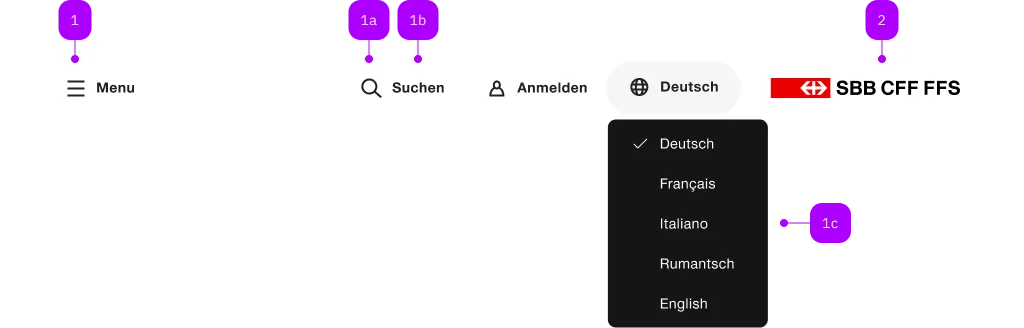
| Nummer | Typ | Beschreibung | Optional | Hinweis |
|---|---|---|---|---|
| 1 | Komponente | sbb-header-button oder sbb-header-link | Nein | |
| 1a | Komponente | sbb-icon | Nein | |
| 1b | Text | Label | Ja | |
| 1c | Komponente | sbb-menu | Ja | |
| 2 | Komponente | sbb-logo | Ja |
Spielwiese
The component represents a button element contained by the sbb-header component.
Slots
It is possible to provide a label via an unnamed slot; the component can optionally display a sbb-icon
at the component start using the iconName property or via custom content using the icon slot.
<sbb-header-button>Text</sbb-header-button>

<sbb-header-button icon-name="pie-small">Another text</sbb-header-button>
If the component's icon is set, the property expandFrom can be used to define the minimum breakpoint
from which the label is displayed; below that, only the icon is visible.
Without an icon, the label is always displayed.
<sbb-header-button expand-from="large">Text</sbb-header-button>
Avatar image
By slotting an img or a sbb-image into the icon-slot, an avatar style icon will be displayed,
and it's possible to place a sbb-badge on it. However, for the img-elements it's not possible to directly
place a sbb-badge on it. In this case, use a wrapping <figure> element.
<figure sbb-badge="5" class="sbb-figure" slot="icon">
  <img
    src="..."
    alt="Avatar Icon"
    class="sbb-image-border-radius-round"
    style="width: var(--sbb-size-icon-ui-small); height: var(--sbb-size-icon-ui-small);"
  />
</figure>
Style
To indicate an active state, the CSS class sbb-active should be set.
From accessibility perspective aria-current="page" should be set whenever the CSS class sbb-active is set.
<sbb-header-button
  icon-name="magnifying-glass-small"
  href="#"
  class="sbb-active"
  aria-current="page"
>
  Overview
</sbb-header-button>
Button properties
The component is internally rendered as a button,
accepting its associated properties (type, name, value and form).
<sbb-header-button value="menu" name="menu">Button</sbb-header-button>
Properties
| Name | Attribute | Privacy | Type | Default | Description |
|---|---|---|---|---|---|
expandFrom | expand-from | public | SbbHorizontalFrom | 'large' | Used to set the minimum breakpoint from which the text is displayed. E.g. if set to 'large', the text will be visible for breakpoints large and ultra, and hidden for all the others. Ignored if no icon is set. |
form | form | public | HTMLFormElement | null | The <form> element to associate the button with. | |
iconName | icon-name | public | string | '' | The icon name we want to use, choose from the small icon variants from the ui-icons category from here https://icons.app.sbb.ch. |
name | name | public | string | Name of the form element. Will be read from name attribute. | |
type | type | public | SbbButtonType | 'button' | The type attribute to use for the button. |
validationMessage | - | public | string | Returns the current error message, if available, which corresponds to the current validation state. Please note that only one message is returned at a time (e.g. if multiple validity states are invalid, only the chronologically first one is returned until it is fixed, at which point the next message might be returned, if it is still applicable). Also, a custom validity message (see below) has precedence over native validation messages. | |
validity | - | public | ValidityState | Returns the ValidityState object for this element. | |
value | value | public | string | '' | Value of the form element. |
willValidate | - | public | boolean | Returns true if this element will be validated when the form is submitted; false otherwise. |
Methods
| Name | Privacy | Description | Parameters | Return | Inherited From |
|---|---|---|---|---|---|
checkValidity | public | Returns true if this element has no validity problems; false otherwise. Fires an invalid event at the element in the latter case. | boolean | SbbFormAssociatedMixin | |
reportValidity | public | Returns true if this element has no validity problems; otherwise, returns false, fires an invalid event at the element, and (if the event isn't canceled) reports the problem to the user. | boolean | SbbFormAssociatedMixin | |
setCustomValidity | public | Sets the custom validity message for this element. Use the empty string to indicate that the element does not have a custom validity error. | message: string | void | SbbFormAssociatedMixin |
Slots
| Name | Description |
|---|---|
Use the unnamed slot to add content to the sbb-header-button. | |
icon | Slot used to render the button icon. |