Was macht die Komponente?
Der Header ist der obere Abschnitt einer Webseite oder Applikation, der wichtige Navigationselemente enthält, um Nutzenden den Zugang zu den Hauptbereichen der Seite oder Applikation zu erleichtern.
Wann soll die Komponente eingesetzt werden?
- Auf jeder Seite einer Website, um eine konsistente Navigation und Markenpräsenz zu gewährleisten.
- Um Hauptnavigationselemente, Logo, Suchfunktionen und wichtige Links sichtbar und leicht zugänglich zu machen.
- Um die Benutzerfreundlichkeit und Orientierung auf der Webseite zu verbessern.
Regeln
- Navigationselemente sollen logisch gruppiert und beschriftet sein, um eine einfache Navigation zu ermöglichen. Sie haben immer ein Icon (links vom Label) platziert.
- Wird ein Hamburger-Menu platziert, so wird es immer als erstes und links dargestellt.
- Der Header soll eine Suchfunktion enthalten, wenn die Website umfangreiche Inhalte bietet.
- Vermeide zu viele Elemente im Header, um die Übersichtlichkeit und das Responsive Verhalten nicht zu beeinträchtigen.
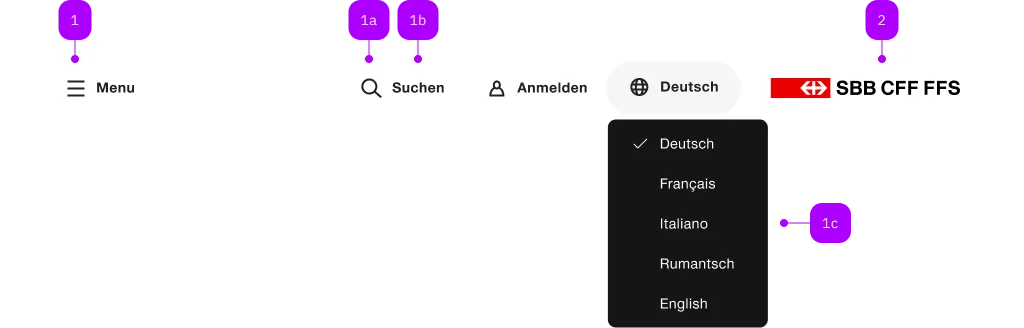
| Nummer | Typ | Beschreibung | Optional | Hinweis |
|---|---|---|---|---|
| 1 | Komponente | sbb-header-button oder sbb-header-link | Nein | |
| 1a | Komponente | sbb-icon | Nein | |
| 1b | Text | Label | Ja | |
| 1c | Komponente | sbb-menu | Ja | |
| 2 | Komponente | sbb-logo | Ja |
The <sbb-header> component is a container for actions and a logo, and it is displayed at the top of the page.
The header can contain:
- one or more actions with
<sbb-header-button>or<sbb-header-link> - other action items like sbb-button or sbb-link
- a logo or a signet with the
.sbb-header-logoclass (see sbb-logo)
Slotted elements are aligned to the left. Use a <div class="sbb-header-spacer"></div> to align elements
after it to the right.
<sbb-header>
  <sbb-header-link icon-name="hamburger-menu-small" href="https://sbb.ch/somewhere">
    Menu
  </sbb-header-link>
  <sbb-header-button icon-name="magnifying-glass-small">Search</sbb-header-button>
  <div class="sbb-header-spacer"></div>
  <a aria-label="Homepage" href="/" class="sbb-header-logo">
    <sbb-logo protective-room="none"></sbb-logo>
  </a>
</sbb-header>
Style
Setting the expanded property will cause the <sbb-header> component to take up the full width of the page.
To avoid that tabbed/focused elements get hidden behind the header,
it's recommended to set on the <html> tag the CSS property scroll-padding-top to var(--sbb-header-height) or to a greater value.
With this, it's ensured that content will be visible all the time.
The component has two sizes, named m (default) and s.
For the latter, the usage of the <sbb-signet> with protective-room='panel' is suggested.
<sbb-header size="s">
  <sbb-header-link icon-name="hamburger-menu-small" href="https://sbb.ch/somewhere">
    Menu
  </sbb-header-link>
  <sbb-header-button icon-name="magnifying-glass-small">Search</sbb-header-button>
  <div class="sbb-header-spacer"></div>
  <a aria-label="Homepage" href="/" class="sbb-header-logo">
    <sbb-signet protective-room="panel"></sbb-signet>
  </a>
</sbb-header>
Scroll behavior
By default, the <sbb-header> listens to scroll events on the document. Whenever the page is
scrolled down, a box-shadow appears beneath the header to visually separate it from the content.
Note: In applications where the page itself does not scroll — such as layouts with an
icon sidebar or sidebar where only the
content area scrolls — the shadow will never appear unless the correct scroll container is
configured. Always set a scroll origin in such setups (see below).
Hide on scroll
Setting the hide-on-scroll attribute causes the header to slide out of view when scrolling down
and reappear when scrolling back up. The box-shadow behavior is retained.
<sbb-header hide-on-scroll>
  <sbb-header-button icon-name="magnifying-glass-small">Search</sbb-header-button>
  <div class="sbb-header-spacer"></div>
  <a aria-label="Homepage" href="/" class="sbb-header-logo">
    <sbb-logo protective-room="none"></sbb-logo>
  </a>
</sbb-header>
Scroll origin
By default, the header listens to scroll events on the document. To attach the scroll listener to
a different element, use the scroll-origin attribute with the id of the element, or set the
scrollOrigin property directly with an HTMLElement reference.
<sbb-header hide-on-scroll scroll-origin="main-content">...</sbb-header>

<div id="main-content" style="overflow: auto;">
  <!-- scrollable page content -->
</div>
Global scroll origin via sbb-header-scroll-origin attribute
As an alternative to the scroll-origin property, any element in the page can be designated as the
scroll origin by placing the sbb-header-scroll-origin attribute on it. This approach is
particularly powerful in the following scenarios:
- Micro-frontend or shell architectures where the header and the scroll container are owned by
different teams or applications and a direct property binding is not feasible. - Router-based applications where each route renders its own scrollable outlet or sub-component.
Each routed view can simply addsbb-header-scroll-originto its scroll container on mount and
remove it on unmount — no reference to the header element is needed.
<sbb-header hide-on-scroll>...</sbb-header>
<sbb-icon-sidebar-container>
  <sbb-icon-sidebar color="milk">...</sbb-icon-sidebar>
  <sbb-icon-sidebar-content sbb-header-scroll-origin>
    <sbb-sidebar-container>
      <sbb-sidebar mode="side" opened>...</sbb-sidebar>
      <sbb-sidebar-content sbb-header-scroll-origin>
      </sbb-sidebar-content>
    </sbb-sidebar-container>
  </sbb-icon-sidebar-contentsbb-header-scroll-origin>
</sbb-icon-sidebar-container>
The <sbb-header> uses a MutationObserver on the document to automatically detect elements
carrying the sbb-header-scroll-origin attribute, including those added to or removed from the DOM
after the initial render. The attribute can also be set and removed dynamically at runtime, so
navigating to a new route automatically hands over the scroll origin to the new container without
any explicit coordination with the header.
If multiple elements carry the sbb-header-scroll-origin attribute simultaneously, the one that
appears last in DOM order is used as the active scroll origin. This includes deeply nested
elements: an element inside a child component will be considered later in DOM order than its
ancestor, and will therefore take priority. In the icon sidebar and sidebar example above,
sbb-sidebar-content is a descendant of sbb-icon-sidebar-content, so it will always win and
become the active scroll origin — which is exactly the desired behavior.
The scroll-origin property takes priority over the sbb-header-scroll-origin attribute.
When scroll-origin is set, it is always used as the active scroll origin regardless of any
elements carrying the sbb-header-scroll-origin attribute. The attribute acts as a convenient
fallback for cases where no explicit scroll-origin property is provided.
Customizing
Users can customize position and behavior of actions inside the <sbb-header> component
by adding classes to <sbb-header-button>/<sbb-header-link> elements and then defining their own style rules.
All the examples have the following requirements:
- four action items (with custom icons);
- the first item is always left aligned and has
expand-fromset tosmall; - the other three items are left aligned in breakpoints zero to large, and right aligned from large to ultra;
- the last item is not visible in breakpoints zero to small;
- the logo is always aligned to the right.
To achieve the alignment requirements, two div tags with a CSS class named sbb-header-spacer were added:
- one after the first
<sbb-header-button>item (that will be hidden on smaller screen sizes); - the second, before the logo. Since this spacer will only be shown on small screen sizes, we need a new class to target it (in this example
sbb-header-spacer-logo);
We also need a class (in this example last-element) on the last <sbb-header-button> to achieve requirement n° 4.
Finally, the following custom CSS has been added(*).
.last-element,
.sbb-header-spacer-logo {
  display: none;
}

@media screen and (width >= 600px) {
  .last-element {
    display: block;
  }
}

@media screen and (width < 1024px) {
  .sbb-header-spacer {
    display: none;
  }

  .sbb-header-spacer-logo {
    display: block;
  }
}
<sbb-header>
  <sbb-header-button icon-name="..." expand-from="small"> ... </sbb-header-button>

  <!-- Will be hidden on small screen sizes -->
  <div class="sbb-header-spacer"></div>

  <sbb-header-button icon-name="..."> ... </sbb-header-button>
  <sbb-header-button icon-name="..."> ... </sbb-header-button>
  <sbb-header-button icon-name="..." class="last-element"> ... </sbb-header-button>

  <!-- Will only be shown on small screen sizes -->
  <div class="sbb-header-spacer sbb-header-spacer-logo"></div>

  <a aria-label="Homepage" href="/" class="sbb-header-logo">
    <sbb-logo protective-room="none"></sbb-logo>
  </a>
</sbb-header>
The <sbb-header> can be also customized by adding the application's name and version:
a helper class named sbb-header-info is provided to achieve the correct visual result.
<sbb-header size="s">
  <sbb-header-link icon-name="hamburger-menu-small" href="https://sbb.ch/somewhere">
    Menu
  </sbb-header-link>

  <span class="sbb-header-info">
    <strong>Application name</strong>
    <span>V. 1.1</span>
  </span>

  <div class="sbb-header-spacer"></div>

  <a aria-label="Homepage" href="/" class="sbb-header-logo">
    <sbb-signet protective-room="panel"></sbb-signet>
  </a>
</sbb-header>
Content overflow
If a certain <sbb-header-button>/<sbb-header-link> should be shrunken (receive ellipsis) when there is too little space,
set the CSS class sbb-header-shrinkable on the desired <sbb-header-button>/<sbb-header-link>.
<sbb-header>
  <sbb-header-link icon-name="hamburger-menu-small" href="https://sbb.ch/somewhere" target="_blank">
    Menu
  </sbb-header-link>
  <sbb-header-button class="sbb-header-shrinkable">
    Christina Müller has a long name
  </sbb-header-button>
  <div class="sbb-header-spacer"></div>
  <a aria-label="Homepage" href="/" class="sbb-header-logo">
    <sbb-logo protective-room="none"></sbb-logo>
  </a>
</sbb-header>
(*) Technical note: Due the presence of media-query rules, it was not possible to add those rules directly
in the component's stories (see also this Storybook issue),
so they were wrapped into a style tag and added to the Storybook's configuration file named preview-head.html.
Header Actions
There are two types of header actions: links and buttons, represented by the <sbb-header-link>
and <sbb-header-button> components respectively.
<sbb-header-link href="#info" target="_blank">Link</sbb-header-link>
<sbb-header-button>Button</sbb-header-button>
The components can optionally display an <sbb-icon> at the component start using the iconName
property or via custom content using the icon slot.
<sbb-header-link href="#info" icon-name="pie-small">Another text</sbb-header-link>
<sbb-header-button><sbb-icon slot="icon" name="pie-small" />Another text</sbb-header-button>
If the component's icon is set, the property expandFrom can be used to define the minimum breakpoint
from which the label is displayed; below that, only the icon is visible.
Without an icon, the label is always displayed.
<sbb-header-link href="#" expand-from="large" icon-name="pie-small">Text</sbb-header-link>
<sbb-header-button expand-from="large" icon-name="pie-small">Text</sbb-header-button>
To indicate an active state, the CSS class sbb-active should be used.
From accessibility perspective accessibility-current="page" should be set whenever the CSS class sbb-active is set.
<sbb-header-link
  icon-name="magnifying-glass-small"
  href="#"
  class="sbb-active"
  accessibility-current="page"
>
  Overview
</sbb-header-link>
Avatar image
By slotting an img or a <sbb-image> into the icon-slot, an avatar style icon will be displayed,
and it's possible to place a sbb-badge on it. However, for the img-elements it's not possible to directly
place a sbb-badge on it. In this case, use a wrapping <figure> element.
<figure sbb-badge="5" class="sbb-figure" slot="icon">
  <img
    src="..."
    alt="Avatar Icon"
    class="sbb-image-border-radius-round"
    style="width: var(--sbb-size-icon-ui-small); height: var(--sbb-size-icon-ui-small);"
  />
</figure>
Header Environment
The <sbb-header-environment> component displays a ribbon inside the header to indicate the current environment.
Note: For the production environment, the sbb-header-environment is expected to be hidden.
<sbb-header>
  ...
  <sbb-header-environment>dev</sbb-header-environment>
</sbb-header>
We provide default colors for dev, edu, int, loc and test. Any other environment is by default of
color granite.
It is possible to override the ribbon background color by overriding the
--sbb-header-environment-background-color CSS variable.
Furthermore, the --sbb-header-environment-color variable can be used change the text color.
sbb-header-environment {
  --sbb-header-environment-background-color: custom-color;
}
API Documentation
class: SbbHeaderButtonElement, sbb-header-button
Properties
| Name | Attribute | Privacy | Type | Default | Description |
|---|---|---|---|---|---|
expandFrom | expand-from | public | SbbHorizontalFrom | 'large' | Used to set the minimum breakpoint from which the text is displayed. E.g. if set to 'large', the text will be visible for breakpoints large and ultra, and hidden for all the others. Ignored if no icon is set. |
form | form | public | HTMLFormElement | null | The <form> element to associate the button with. | |
iconName | icon-name | public | string | '' | The icon name we want to use, choose from the small icon variants from the ui-icons category from here https://icons.app.sbb.ch. |
name | name | public | string | Name of the form element. Will be read from name attribute. | |
type | type | public | SbbButtonType | 'button' | The type attribute to use for the button. |
validationMessage | - | public | string | Returns the current error message, if available, which corresponds to the current validation state. Please note that only one message is returned at a time (e.g. if multiple validity states are invalid, only the chronologically first one is returned until it is fixed, at which point the next message might be returned, if it is still applicable). Also, a custom validity message (see below) has precedence over native validation messages. | |
validity | - | public | ValidityState | Returns the ValidityState object for this element. | |
value | value | public | string | '' | Value of the form element. |
willValidate | - | public | boolean | Returns true if this element will be validated when the form is submitted; false otherwise. |
Methods
| Name | Privacy | Description | Parameters | Return | Inherited From |
|---|---|---|---|---|---|
checkValidity | public | Returns true if this element has no validity problems; false otherwise. Fires an invalid event at the element in the latter case. | boolean | SbbFormAssociatedMixin | |
reportValidity | public | Returns true if this element has no validity problems; otherwise, returns false, fires an invalid event at the element, and (if the event isn't canceled) reports the problem to the user. | boolean | SbbFormAssociatedMixin | |
setCustomValidity | public | Sets the custom validity message for this element. Use the empty string to indicate that the element does not have a custom validity error. | message: string | void | SbbFormAssociatedMixin |
Slots
| Name | Description |
|---|---|
Use the unnamed slot to add content to the sbb-header-button. | |
icon | Slot used to render the button icon. |
class: SbbHeaderElement, sbb-header
Properties
| Name | Attribute | Privacy | Type | Default | Description |
|---|---|---|---|---|---|
expanded | expanded | public | boolean | false | Whether to allow the header content to stretch to full width. By default, the content has the appropriate page size. |
hideOnScroll | hide-on-scroll | public | boolean | false | Whether the header should hide and show on scroll. |
scrollOrigin | scroll-origin | public | HTMLElement | null | null | The element's id or the element on which the scroll listener is attached. For attribute usage, provide an id reference. |
size | size | public | 'm' | 's' | 'm' / 's' (lean) | Size of the header, either m or s. |
CSS Properties
| Name | Default | Description |
|---|---|---|
--sbb-header-height | zero-small:var(--sbb-spacing-fixed-14x);large-ultra:var(--sbb-spacing-fixed-24x) | Can be used to modify height of the header. |
--sbb-header-z-index | 10 | Can be used to modify the z-index of the header. |
Slots
| Name | Description |
|---|---|
| Use the unnamed slot to add actions, content and logo to the header. |
class: SbbHeaderEnvironmentElement, sbb-header-environment
CSS Properties
| Name | Default | Description |
|---|---|---|
--sbb-header-environment-background-color | var(sbb-color-granite) | Can be used change the ribbon color. |
--sbb-header-environment-color | var(sbb-color-white) | Can be used change the text color. |
Slots
| Name | Description |
|---|---|
| Use the unnamed slot to add the environment. |
class: SbbHeaderLinkElement, sbb-header-link
Properties
| Name | Attribute | Privacy | Type | Default | Description |
|---|---|---|---|---|---|
accessibilityCurrent | accessibility-current | public | string | '' | This will be forwarded as aria-current to the inner anchor element. |
accessibilityLabel | accessibility-label | public | string | '' | This will be forwarded as aria-label to the inner anchor element. |
download | download | public | boolean | false | Whether the browser will show the download dialog on click. |
expandFrom | expand-from | public | SbbHorizontalFrom | 'large' | Used to set the minimum breakpoint from which the text is displayed. E.g. if set to 'large', the text will be visible for breakpoints large and ultra, and hidden for all the others. Ignored if no icon is set. |
href | href | public | string | '' | The href value you want to link to. |
iconName | icon-name | public | string | '' | The icon name we want to use, choose from the small icon variants from the ui-icons category from here https://icons.app.sbb.ch. |
rel | rel | public | string | '' | The relationship of the linked URL as space-separated link types. |
target | target | public | LinkTargetType | string | '' | Where to display the linked URL. |
Slots
| Name | Description |
|---|---|
Use the unnamed slot to add content to the sbb-header-link. | |
icon | Slot used to render the link icon. |