Was macht die Komponente?
Das Checkbox-Panel erfüllt die gleiche Aufgabe wie die Checkbox. Zusätzlich zur normalen Checkbox bietet das Checkbox-Panel die Möglichkeit Subtexte, Card-Badges oder Icons darzustellen.
Wann soll die Komponente eingesetzt werden?
- Um Nutzenden die Möglichkeit zu geben, mehrere unabhängige Optionen auszuwählen.
- Um eine Ja/Nein- oder Ein/Aus-Auswahl anzubieten.
- Um Zustimmungen oder Bedingungen zu bestätigen (z.B. Newsletter-Anmeldung).
- Wenn das Checkbox-Panel besser ins Layout passt als die normale Checkbox.
- Wenn weitere Inhalte (wie Icons, Texte, Card-Badges) nötig sind, bzw. die Möglichkeiten der normalen Checkbox nicht ausreichen um die Auswahl optimal zu beschreiben.
- Wenn frei wählbarer Inhalt unterhalb des Checkbox-Panels angezeigt werden soll. Technische Implemenation siehe "Selection-Expansion-Panel".
Regeln
- Jedes Checkbox-Panel soll klar beschriftet sein und die Option eindeutig benennen.
- Gruppen von Checkboxes sollen logisch zusammengefasst werden.
- Vermeide zu viele Optionen in einer Gruppe, um die Übersichtlichkeit zu bewahren (max. 5-7 Optionen).
- Vermeide zu viele Inhalte im Checkbox-Panel um die Lesbarkeit und Übersichtlichkeit zu gewährleisten.
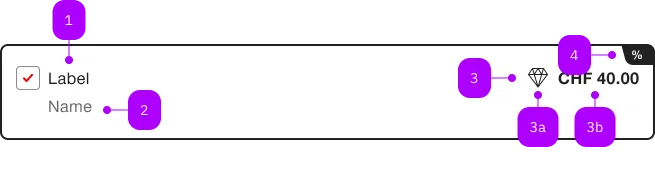
| Nummer | Typ | Beschreibung | Optional | Hinweis |
|---|---|---|---|---|
| 1 | Text | Label | Nein | |
| 2 | Text | Subtext | Ja | |
| 3 | Slot | Suffix | Ja | |
| 3a | Komponente | sbb-icon | Ja | |
| 3b | Text | Ja | ||
| 4 | Komponente | sbb-card-badge | Ja |
Spielwiese
The <sbb-checkbox> component provides the same functionality as a native <input type="checkbox"/> enhanced with the SBB Design.
Slots
It is possible to provide a label via an unnamed slot; the component can optionally display a <sbb-icon> using
the iconName property or via custom SVG using the icon slot.
The icon can be placed before or after the label based on the value of the iconPlacement property (default: end).
<sbb-checkbox value="checkbox">Example</sbb-checkbox>

<sbb-checkbox value="icon" icon-name="tickets-class-small">Icon</sbb-checkbox>

<sbb-checkbox value="start-icon" icon-name="tickets-class-small" icon-placement="start"
  >Icon at start</sbb-checkbox
>
States
The component could be checked or not depending on the value of the checked attribute.
<sbb-checkbox value="checked-checkbox" checked>Checked state</sbb-checkbox>
It has a third state too, which is set if the indeterminate property is true.
This is useful when multiple dependent checkboxes are used
(e.g., a parent which is checked only if all the children are checked, otherwise is in indeterminate state).
Clicking on a <sbb-checkbox> in this state sets checked to true and indeterminate to false.
<sbb-checkbox value="indeterminate-checkbox" indeterminate="true">Indeterminate state</sbb-checkbox>
The component can be displayed in disabled or required state by using the self-named properties.
<sbb-checkbox value="required-checkbox" required="true">Required</sbb-checkbox>

<sbb-checkbox value="disabled-checkbox" disabled="true">Disabled</sbb-checkbox>
Style
The component has three possible size values, named xs, s and m (default).
<sbb-checkbox value="size" size="xs">Size</sbb-checkbox>

<sbb-checkbox value="size" size="s">Size</sbb-checkbox>
The component's label can be displayed in bold using the sbb-text--bold class on a wrapper tag:
<sbb-checkbox value="bold">
  <span class="sbb-text--bold">Bold label</span>
</sbb-checkbox>
Events
Consumers can listen to the native change event on the <sbb-checkbox> component to intercept the input's change;
the current state can be read from event.target.checked, while the value from event.target.value.
Accessibility
The component provides the same accessibility features as the native checkbox.
Avoid adding other interactive controls into the content of <sbb-checkbox>, as this degrades the experience for users of assistive technology.
Always provide an accessible label via aria-label for checkboxes without descriptive text content.
If you don't want the label to appear next to the checkbox, you can use aria-label to specify an appropriate label.
<sbb-checkbox aria-label="Subscribed to email message"></sbb-checkbox>
Complex Values
This component supports any types of values, including complex objects.
The type can be specified using the generic type parameter T of SbbCheckbox<T>.
<sbb-checkbox .value=${{value: 'value', name: 'name'}} name="name">Checkbox</sbb-checkbox>
API Documentation
class: SbbCheckboxElement, sbb-checkbox
Properties
| Name | Attribute | Privacy | Type | Default | Description |
|---|---|---|---|---|---|
checked | checked | public | boolean | false | Whether the checkbox is checked. |
disabled | disabled | public | boolean | false | Whether the component is disabled. |
form | - | public | HTMLFormElement | null | Returns the form owner of this element. | |
group | - | public | SbbCheckboxGroupElement | null | null | Reference to the connected checkbox group. |
iconName | icon-name | public | string | '' | The icon name we want to use, choose from the small icon variants from the ui-icons category from here https://icons.app.sbb.ch. |
iconPlacement | icon-placement | public | SbbIconPlacement | 'end' | The label position relative to the labelIcon. Defaults to end |
indeterminate | indeterminate | public | boolean | false | Whether the checkbox is indeterminate. |
name | name | public | string | Name of the form element. Will be read from name attribute. | |
required | required | public | boolean | false | Whether the component is required. |
size | size | public | SbbCheckboxSize | 'm' / 'xs' (lean) | Size variant, either xs, s or m. |
type | - | public | string | 'checkbox' | Form type of element. |
validationMessage | - | public | string | Returns the current error message, if available, which corresponds to the current validation state. Please note that only one message is returned at a time (e.g. if multiple validity states are invalid, only the chronologically first one is returned until it is fixed, at which point the next message might be returned, if it is still applicable). Also, a custom validity message (see below) has precedence over native validation messages. | |
validity | - | public | ValidityState | Returns the ValidityState object for this element. | |
value | value | public | (T = string) | null | null | Value of the form element. |
willValidate | - | public | boolean | Returns true if this element will be validated when the form is submitted; false otherwise. |
Methods
| Name | Privacy | Description | Parameters | Return | Inherited From |
|---|---|---|---|---|---|
checkValidity | public | Returns true if this element has no validity problems; false otherwise. Fires an invalid event at the element in the latter case. | boolean | SbbFormAssociatedMixin | |
reportValidity | public | Returns true if this element has no validity problems; otherwise, returns false, fires an invalid event at the element, and (if the event isn't canceled) reports the problem to the user. | boolean | SbbFormAssociatedMixin | |
setCustomValidity | public | Sets the custom validity message for this element. Use the empty string to indicate that the element does not have a custom validity error. | message: string | void | SbbFormAssociatedMixin |
Events
| Name | Type | Description | Inherited From |
|---|---|---|---|
change | Event | The change event is fired when the user modifies the element's value. Unlike the input event, the change event is not necessarily fired for each alteration to an element's value. | |
input | InputEvent | The input event fires when the value has been changed as a direct result of a user action. |
Slots
| Name | Description |
|---|---|
Use the unnamed slot to add content to the sbb-checkbox. | |
icon | Slot used to render the checkbox icon (disabled inside a selection panel). |